How to Connect Your Ledger Hardware Wallet (2026 Guide)
Ledger connects via three methods – Ledger Wallet app, MetaMask, and WalletConnect. Every transaction requires Physical Confirmation on the Ledger signer’s Secure Screen. Private keys remain in the Secure Element chip – no connection method can extract them.
| Entity | Role | Layer |
| Ledger signer | Hardware device β stores private keys offline | Core |
| Secure Element | EAL6+ chip β signs transactions locally | Security |
| Ledger Wallet App | Native companion app β Clear Signing by default | Connection |
| MetaMask | Browser extension β requires Blind Signing via WebHID | Connection |
| WalletConnect | Cross-platform protocol β 6,000+ dApps | Connection |
| Clear Signing | ERC-7730 standard β human-readable Secure Screen | Security |
| Blind Signing | Raw hash approval β no readable transaction details | Risk |
| Transaction Check | Scans contracts for risk before Secure Screen | Security |
- The Ledger signer stores private keys inside an offline Secure Element chip that is never exposed to the internet.
- Physical Confirmation ensures no transaction can execute without a button press directly on the device.
- Clear Signing is powered by ERC-7730 V2 and displays human-readable transaction details on the Secure Screen before any approval.
- Blind Signing is triggered when MetaMask or a dApp lacks ERC-7730 metadata support, preventing readable details from appearing.
What is a Ledger connection and which method should you use in 2026?
A Ledger connection pairs the hardware signer with software that constructs transactions. The signer approves via Physical Confirmation β software only proposes, never executes independently.
Which Ledger connection method is safest for DeFi in 2026?
Ledger Wallet app and direct dApp connectivity are safest β Clear Signing is active by default. MetaMask gives the most DeFi access but requires Blind Signing, the highest-risk signing mode.
| Method | Security | Signing Mode | dApp Access | Best For |
| Ledger Wallet app | Highest | Clear Signing | Native + partner dApps | Portfolio, staking, swap |
| Direct dApp connectivity | Highest | Clear Signing always | Partner dApps only | Secure DeFi without extensions |
| WalletConnect | High | Clear or Blind | 6,000+ dApps | Cross-dApp access |
| MetaMask | Medium | Blind Signing required | Full DeFi ecosystem | Maximum DeFi compatibility |
| Rabby Wallet | Medium | Blind Signing + simulation | Full DeFi ecosystem | DeFi + transaction simulation |
- The Ledger Wallet app automatically activates both Transaction Check and Clear Signing for every transaction β no manual setup required.
- MetaMask uses WebHID and EIP-712 transaction routing, but most DeFi smart contracts still require Blind Signing because ERC-7730 metadata is unavailable.
- Rabby Wallet adds a transaction simulation preview that shows expected token changes before signing, partially reducing the risk that comes with Blind Signing.
- Bybit lost $1.5 billion in 2025 via a verified Blind Signing exploit β confirming that this is a real and documented risk, not theoretical.
Should you use Ledger Wallet app or MetaMask with Ledger in 2026?
Use Ledger Wallet app when security is the priority. Use MetaMask when you need access to the full DeFi ecosystem not yet natively supported in Ledger Wallet.
| Factor | Ledger Wallet App | MetaMask + Ledger |
| Signing security | Clear Signing – full details visible | Blind Signing β raw hash only |
| Transaction Check | Active by default | Not available |
| DeFi access | Curated partner dApps | Full DeFi ecosystem |
| Extension required | No | Yes |
| ERC-7730 support | Full | Not fully adopted |
| Risk if phished | Very low | Higher – Blind Signing bypasses verification |
- The recommended workflow is to use Ledger Wallet app first, and only fall back to MetaMask for dApps that are not yet available in Ledger Wallet’s native ecosystem.
- MetaMask with Ledger is only justified for dApps that have not yet been integrated into the Ledger Wallet platform.
How does USB differ from Bluetooth connection on Ledger Nano X?
| Feature | USB-C | Bluetooth (Nano X only) |
| Models | All Ledger models | Nano X only |
| Platform | PC, Mac, Android | iOS + Android |
| MetaMask support | Yes | No |
| Battery | Not required | Nano X built-in battery |
| Security | Equivalent | Equivalent – encrypted channel |
- MetaMask requires a USB-C connection β Bluetooth is not supported for MetaMask pairing on any Ledger model.
- The Nano S Plus supports USB-C only and has no Bluetooth capability or built-in battery.
How do you connect Ledger to the Ledger Wallet app – step by step?
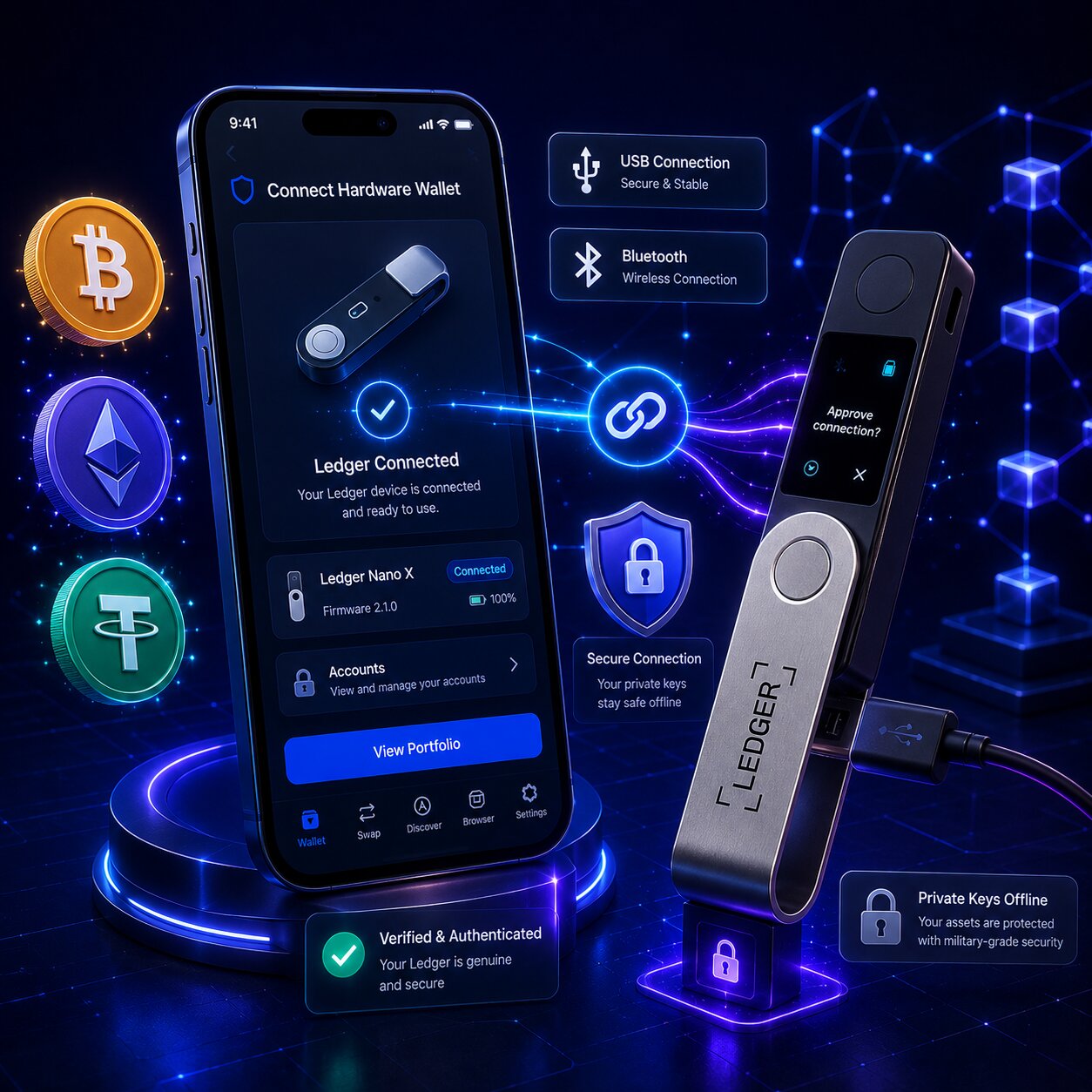
Ledger Wallet app connects the signer via USB-C or Bluetooth. Clear Signing and Transaction Check activate by default β no manual configuration needed.
Steps – USB-C connection:
- Download the Ledger Wallet app from ledger.com/ledger-live on your Windows, macOS, or Linux computer.
- Connect your Ledger signer to the computer using a USB-C cable, then unlock the device by entering your PIN.
- Open the Ledger Wallet app and click My Ledger in the left sidebar.
- The device screen displays an “Allow Ledger Manager” prompt β press both buttons simultaneously to approve the connection.
- The device pairs successfully and your installed apps and firmware version appear in the app.
- Navigate to the Accounts tab and click Add account to set up each asset you want to manage.
Steps – Bluetooth connection (Nano X only):
- Download the Ledger Wallet app on your iOS or Android device from the official app store.
- Enable Bluetooth on both your phone and the Nano X device before opening the app.
- Open the Ledger Wallet app, tap My Ledger, then tap Connect via Bluetooth to begin scanning.
- When your Nano X appears in the device list, tap it to initiate pairing.
- A pairing confirmation code appears on both screens β verify they match, then press the Physical Confirmation button on the Nano X.
- The device pairs and all your accounts sync automatically to the mobile app.
What changed in Ledger Wallet 4.0 vs Ledger Live?
| Feature | Ledger Live | Ledger Wallet 4.0 (2026) |
| Name | Ledger Liveβ’ | Ledger Walletβ’ |
| Asset support | 5,500+ | 15,000+ coins and tokens |
| Integrations | Limited | Jupiter, OKX DEX, Uniswap, 1inch, NEAR Intents |
| Signing | Partial Clear Signing | ERC-7730 V2 – default Clear Signing |
| Direct dApp connectivity | No | Yes – no extension |
| Transaction Check | Limited | All transactions scanned |
How does Transaction Check protect Ledger Wallet connections?
Transaction Check scans every contract interaction before the Secure Screen displays the approval prompt – flagging malicious contracts, phishing attempts, and suspicious token approvals before any user action is required.
| Status | Meaning | Action |
| No risk | Passes security scan | Proceed with Physical Confirmation |
| Potential risk | Unusual contract or approval | Review all details carefully before confirming |
| High risk | Known malicious contract | Reject immediately β press X on device |
- Transaction Check scans every contract interaction before the signing screen appears, giving users a verified risk rating before they decide.
- The Secure Screen displays transaction risk alerts generated locally by the Secure Element chip β these alerts cannot be altered by malware on the connected computer.
- Ledger Wallet automatically blocks known malicious approvals through Transaction Check before they ever reach the Physical Confirmation step.
How do you connect Ledger to MetaMask for DeFi – step by step?
MetaMask connects to Ledger via USB-C and WebHID, adding hardware-level private key security to the full DeFi ecosystem. Every MetaMask transaction still requires Physical Confirmation on the Ledger signer before it executes.
Steps:
- Connect your Ledger signer to the computer via USB-C cable and enter your PIN to unlock the device.
- Navigate to the Ethereum app on the Ledger device and open it β the screen should show “Application is ready.”
- Press both buttons to open the Ethereum app settings, scroll to Blind Signing, and press both buttons again β the setting changes from “Disabled” to “Enabled.”
- Open the MetaMask browser extension and click the profile icon in the top-right corner of the interface.
- Click Add hardware wallet from the dropdown menu that appears.
- Select Ledger from the list of hardware wallet options, then click Continue.
- Your browser displays a WebHID connection dialog β select your Ledger device from the list and click Connect.
- MetaMask loads a list of available accounts from your Ledger β select the accounts you want to use and click Unlock.
- Your Ledger accounts now appear in MetaMask with a hardware wallet icon, confirming successful connection.
If the connection fails: open MetaMask, go to Settings β Advanced, find “Preferred Ledger Connection Type,” and change it to WebHID.
Why does MetaMask require Blind Signing with Ledger?
MetaMask uses WebHID and EIP-712 transaction routing, but many DeFi smart contracts still require Blind Signing because ERC-7730 metadata is unavailable. The Secure Element receives a raw ABI-encoded hash β without structured metadata it cannot parse human-readable details onto the Secure Screen.
| Signing Flow | MetaMask | Ledger Wallet App |
| Transaction construction | Browser extension | Native Ledger Wallet |
| Metadata format | EIP-712 + raw ABI hash | ERC-7730 structured |
| Secure Screen display | “Contract Data” or hash | Full details β amount, address, contract |
| Transaction Check | Not available | Active |
How do you enable Blind Signing safely for MetaMask DeFi?
Safe Blind Signing protocol:
| Step | Action | Purpose |
| Use burner wallet | Separate Ledger account with minimal funds | Limits maximum loss if a contract is exploited |
| Enable just before | Change state to Enabled immediately before transaction | Keeps the vulnerability window as short as possible |
| Verify URL | Check the dApp domain character by character | Prevents phishing signature attacks |
| Check Secure Screen | Confirm transaction details on device β not computer | Detects any transaction manipulation by malware |
| Disable after | Change state back to Disabled immediately after | Restores full security between sessions |
| Revoke after session | Visit revoke.cash to cancel active approvals | Removes smart contract spending permissions |
- Blind Signing should only be enabled for a specific verified transaction, then disabled again immediately β never left on permanently.
- Visiting revoke.cash after any Blind Signing session lets you connect your Ledger and cancel all active smart contract approvals across 100+ EVM chains.
- Seed phrase isolation means Ledger private keys never move to the connected computer, regardless of whether Blind Signing is enabled or disabled.
How do you connect Ledger to a dApp via WalletConnect – step by step?
WalletConnect connects Ledger to 6,000+ dApps via QR code scan from the Ledger Wallet app’s Discover section. Clear Signing activates automatically on dApps that have implemented ERC-7730 metadata support.
Steps β from Ledger Wallet Discover:
- Open the Ledger Wallet app and navigate to the Discover section from the main menu.
- Search for the dApp by name or enter its URL directly in the browser bar.
- When the dApp loads, click Connect Wallet and select WalletConnect from the options.
- A QR code appears on the dApp β scan it using the built-in scanner in the Ledger Wallet app.
- Select your Ledger account from the list, then press the Physical Confirmation button on the device.
- The dApp confirms the connection and your Ledger address is now active.
Steps β from dApp directly:
- Visit the dApp in your browser and click Connect Wallet, then select WalletConnect.
- A QR code appears on the dApp screen β open the Ledger Wallet mobile app and tap the Scan icon.
- Scan the QR code, then press the Physical Confirmation button on the Ledger device to complete the connection.
Is WalletConnect safer than MetaMask with Ledger?
WalletConnect is safer than MetaMask with Ledger when the dApp supports ERC-7730 β Clear Signing activates automatically. For dApps without ERC-7730, WalletConnect still triggers Blind Signing, making the risk similar to MetaMask.
| Factor | WalletConnect (ERC-7730) | WalletConnect (no ERC-7730) | MetaMask |
| Signing | Clear Signing | Blind Signing | Blind Signing |
| Transaction Check | Via Ledger Wallet | No | No |
| Extension required | No | No | Yes |
How does direct dApp connectivity differ from WalletConnect in 2026?
Direct dApp connectivity is a 2026 Ledger Wallet feature that connects the Ledger signer to partner dApps in a single click β no QR code, no browser extension, and always with Clear Signing active.
| Feature | WalletConnect | Direct dApp Connectivity |
| Setup | QR scan required | One click |
| Clear Signing | On ERC-7730 dApps only | Always active |
| Transaction Check | Partial | Always active |
| Extension needed | No | No |
- The Ledger Wallet Provider library enables a direct browser session between the dApp and the Ledger signer, removing any third-party relay service from the connection path.
- By removing the WalletConnect middleware layer, direct connectivity eliminates the session relay risk that exists in standard WalletConnect flows.
- Clear Signing activates automatically for all direct dApp connections β no user configuration is needed.
Next: Clear Signing vs Blind Signing is the most critical security concept for every Ledger user.
What is the difference between Clear Signing and Blind Signing on Ledger?
Clear Signing displays human-readable transaction details on the Secure Screen. Blind Signing shows only a raw cryptographic hash β the user cannot verify recipient, amount, or contract before approving.
| Feature | Clear Signing | Blind Signing |
| Secure Screen display | Recipient, amount, token, contract name | Raw hash or “Contract Data” |
| Standard | ERC-7730 V2 (April 2026) | Raw ABI encoding |
| User verification | Full – see exactly what you sign | None – approve unknown content |
| Exploit history | No known exploits | Bybit $1.5B lost (2025) |
| Available in | Ledger Wallet native, direct dApp | MetaMask, unsupported WalletConnect |
What is ERC-7730 V2 and what changed with Ethereum Foundation governance in 2026?
| Milestone | Year | Change |
| Custom plugin per dApp | Pre-2025 | Clear Signing required manual integration |
| Generic Parser | 2025 | Auto-reads dApp metadata β no plugin needed |
| ERC-7730 V2 | April 2026 | Cross-chain, stronger privacy, simpler adoption |
| Ethereum Foundation governance | 2026 | Neutral standard β any wallet can implement |
- ERC-7730 V2 has been adopted by WalletConnect, Trezor, Fireblocks, Cyfrin, and the Ethereum Foundation β making it an industry-wide standard rather than a Ledger-exclusive feature.
- The Wallet Standard defines how hardware wallets and dApps communicate transaction metadata, enabling Clear Signing across all compatible tools.
- The Ethereum Foundation now governs ERC-7730 as a neutral industry standard, ensuring any wallet or dApp can implement it without Ledger involvement.
When should you avoid Blind Signing completely on Ledger?
| Scenario | Blind Signing Needed | Safe Alternative |
| Ledger Wallet native swap | No | Use Ledger Wallet β Clear Signing active |
| Unknown airdrop claim | Never | Reject β phishing signature attack likely |
| Unsolicited signature request | Never | Reject immediately without interaction |
| Aave via MetaMask | Required | Switch to WalletConnect from Ledger Wallet Discover |
- Phishing signature attacks impersonate legitimate dApp interfaces to trick users into approving malicious token transfers β never sign requests from unknown sources.
- Fake WalletConnect popups are injected by malicious sites to redirect your signature to an attacker’s wallet β always initiate WalletConnect from inside the Ledger Wallet Discover section.
- Any smart contract approval granted during a DeFi session persists on-chain after you disconnect β visit revoke.cash after every session to cancel outstanding approvals.
What are the biggest security risks when connecting Ledger to DeFi apps?
Six verified attack vectors target Ledger DeFi users. None of them can access the Secure Element or extract private keys β but all of them can drain token balances that have been approved via smart contracts.
| Threat | Attack Vector | Prevented By |
| Approval phishing | Fake dApp requests unlimited token approval | Transaction Check + Clear Signing |
| Phishing signature attack | Counterfeit dApp UI requests malicious signature | URL verification + Transaction Check |
| Fake WalletConnect popup | Injected QR redirects to attacker wallet | Use Ledger Wallet Discover only |
| Clipboard malware | Replaces copied address mid-transaction | Verify address on Secure Screen before confirming |
| Malicious browser extension | Intercepts MetaMask transaction data | Disable all unused extensions |
| Fake Ledger download | Malware app captures wallet interactions | Download Ledger Wallet only from ledger.com |
- The Secure Element chip cannot be accessed by any of these attack vectors β cold storage isolation means private keys are physically separated from internet-connected components.
- Seed phrase isolation ensures private keys never leave the Secure Element chip, regardless of what attack is attempted on the connected device.
- Visiting revoke.cash after any compromised or suspicious DeFi session lets you cancel all active token approvals before an attacker can execute a transfer.
Can malware steal crypto from Ledger during MetaMask use?
Malware cannot extract private keys from the Secure Element. However, malware can alter the transaction details displayed in the MetaMask interface β showing a different recipient address or amount than what was intended. The Secure Screen always shows the actual transaction content that the Ledger will sign, making it the only trustworthy source of transaction information.
- The Secure Screen displays the actual transaction the Ledger will sign β it is the only display that reflects ground truth and cannot be manipulated by the connected device.
- The MetaMask interface can be altered by malware running on the computer, making the on-screen amounts and addresses unreliable during an attack.
- Physical Confirmation on the Secure Screen is the only action that executes a transaction β if the Secure Screen details look wrong, reject the transaction immediately.
What happens if you approve a malicious smart contract on Ledger?
| Action | Result | Reversible |
| Approve malicious contract | Smart contract gains token transfer rights | Revoke via revoke.cash before transfer |
| Contract executes transfer | Tokens moved to attacker wallet | Permanent loss |
| Revoke approval before execution | Contract loses all transfer rights | Full protection |
- A smart contract approval persists on-chain until explicitly revoked – disconnecting your wallet does not cancel the permission that was granted.
- Visiting revoke.cash and connecting your Ledger lets you scan all active approvals across 100+ EVM chains and revoke any that appear suspicious.
- Revoke any approvals immediately after a suspicious dApp interaction or Blind Signing session β before the attacker has a chance to execute the transfer.
Why is my Ledger not connecting β troubleshooting guide?
What causes Ledger MetaMask connection to fail?
| Cause | Symptom | Fix |
| Blind Signing disabled | “Ledger device locked” error in MetaMask | Open Ethereum app settings on device and enable Blind Signing |
| Wrong connection type | Device not detected by MetaMask | Go to MetaMask Advanced settings and change connection type to WebHID |
| Ethereum app not open | No accounts load after connection | Navigate to and open the Ethereum app directly on the Ledger device |
| Extension conflict | MetaMask is overridden by another wallet | Disable all other wallet browser extensions and retry |
| Outdated firmware | Firmware mismatch error | Open My Ledger in Ledger Wallet app and update to the latest firmware |
- If MetaMask shows a “Locked” error, Blind Signing is currently disabled on the device β open the Ethereum app settings and change the setting to Enabled.
- If the device connects but no accounts appear, the Ethereum app is not open on the Ledger β navigate to it directly on the device screen before retrying.
- If a WebHID error appears, the MetaMask connection type is set incorrectly β go to MetaMask Settings β Advanced and change Preferred Ledger Connection Type to WebHID.
- If another wallet extension like Coinbase Wallet is interfering, disable it temporarily in your browser extensions panel and retry the MetaMask connection.
What causes Ledger Bluetooth connection to fail?
| Cause | Symptom | Fix |
| Bluetooth off on phone | Nano X not found in Ledger Wallet app | Enable Bluetooth on your phone before opening the Ledger Wallet app |
| Low battery on Nano X | Connection drops during use | Charge the Nano X above 20% before attempting a Bluetooth session |
| Previous pairing conflict | “Already paired” error appears | Forget the Nano X in your phone’s Bluetooth settings, then re-pair from scratch |
| Outdated firmware | Bluetooth drops frequently | Connect via USB-C first and update the firmware through My Ledger |
FAQ
How do I connect my Ledger to a computer?
Connect Ledger to a computer by plugging in via USB-C, entering your PIN on the device, opening Ledger Wallet app, clicking My Ledger, and pressing both buttons when the device displays “Allow Ledger Manager.” The Nano X also connects via Bluetooth on iOS and Android through the Ledger Wallet mobile app.
How do I connect Ledger to MetaMask?
Connect Ledger to MetaMask by plugging in via USB-C, opening the Ethereum app on the device, enabling Blind Signing in the app settings, then in MetaMask clicking Add hardware wallet β Ledger β Continue β selecting the device via WebHID β Unlock. Physical Confirmation on the Secure Screen is required for every DeFi transaction.
How do I connect Ledger to a dApp?
Connect Ledger to a dApp via the Ledger Wallet app Discover section for Clear Signing by default, via WalletConnect QR scan for Clear Signing on ERC-7730 supported dApps, or via direct dApp connectivity in 2026 for one-click connection with Clear Signing always active. All methods require Physical Confirmation for every transaction.
What is Blind Signing on Ledger?
Blind Signing is approving a transaction shown only as a raw cryptographic hash on the Secure Screen β no readable recipient, amount, or contract name is displayed. It becomes necessary when wallets or dApps do not support ERC-7730 metadata parsing. MetaMask, Rabby, and unsupported WalletConnect sessions all trigger Blind Signing instead of Clear Signing.
Is it safe to connect Ledger to MetaMask?
Connecting Ledger to MetaMask is safer than using MetaMask alone β Physical Confirmation on the Secure Screen is required for every transaction. The main risk is Blind Signing, where users approve raw hashes without readable details. Use a dedicated burner wallet, enable Blind Signing only before a specific transaction, disable it immediately after, and revoke approvals via revoke.cash.
Can Ledger connect to Rabby Wallet?
Yes. Rabby Wallet connects to Ledger via USB-C using the same WebHID method as MetaMask. Rabby adds a transaction simulation feature that shows expected token changes before signing, which partially reduces the risk that comes with Blind Signing. However, Rabby has not fully adopted ERC-7730, so Blind Signing is still required for most DeFi interactions.
Can you use Ledger without browser extensions?
Yes. The Ledger Wallet app provides native portfolio management, staking, swapping, and buying without any browser extension, using Clear Signing by default. Direct dApp connectivity introduced in 2026 connects Ledger to partner dApps in one click with no extension required. WalletConnect also reaches 6,000+ dApps without needing any browser extension installed.
What is Clear Signing on Ledger?
Clear Signing displays full human-readable transaction details β recipient address, amount, token name, and contract β on the Ledger signer’s tamper-proof Secure Screen before any approval is given. It is powered by ERC-7730 V2 released in April 2026, with governance transferred to the Ethereum Foundation. Clear Signing is active by default in all Ledger Wallet native flows and direct dApp connections.