How to Connect Trust Wallet to DApps: WalletConnect Guide
How to Connect Trust Wallet to DApps: WalletConnect Guide
CrisCoin 14 min readTrust Wallet
Trust Wallet connects to DApps using WalletConnect or its built-in DApp browser — both let you sign transactions, swaps, and NFT actions without ever exposing your private key.
Trust Wallet stores private keys locally and never on centralized servers, so connecting to a DApp only shares your public address and transaction approvals.
Core FlowTrust Wallet signs transactions for the blockchain, WalletConnect links the wallet to external DApps, and DApps request approval through smart contracts.
What Does "Connect Trust Wallet" Mean?
Connecting Trust Wallet means linking your wallet to a DApp or crypto service. The wallet signs transactions via smart contracts without ever exposing your private key.
Key Components
Trust Wallet stores private keys locally
WalletConnect creates encrypted sessions
DApps request transaction signatures
Blockchain networks validate the transactions
What Do You Need Before Connecting a Trust Wallet?
You need an active wallet, a backed-up seed phrase, and secure internet access — Trust Wallet requires full setup and authentication before external connections.
1
Install Trust Wallet
Available on iOS or Android.
2
Create or import a wallet
Use your seed phrase to set it up.
3
Enable authentication
Set a PIN or enable biometrics.
4
Activate the networks you need
Ethereum, BNB Chain, Polygon, etc.
How Do You Connect Trust Wallet Using WalletConnect?
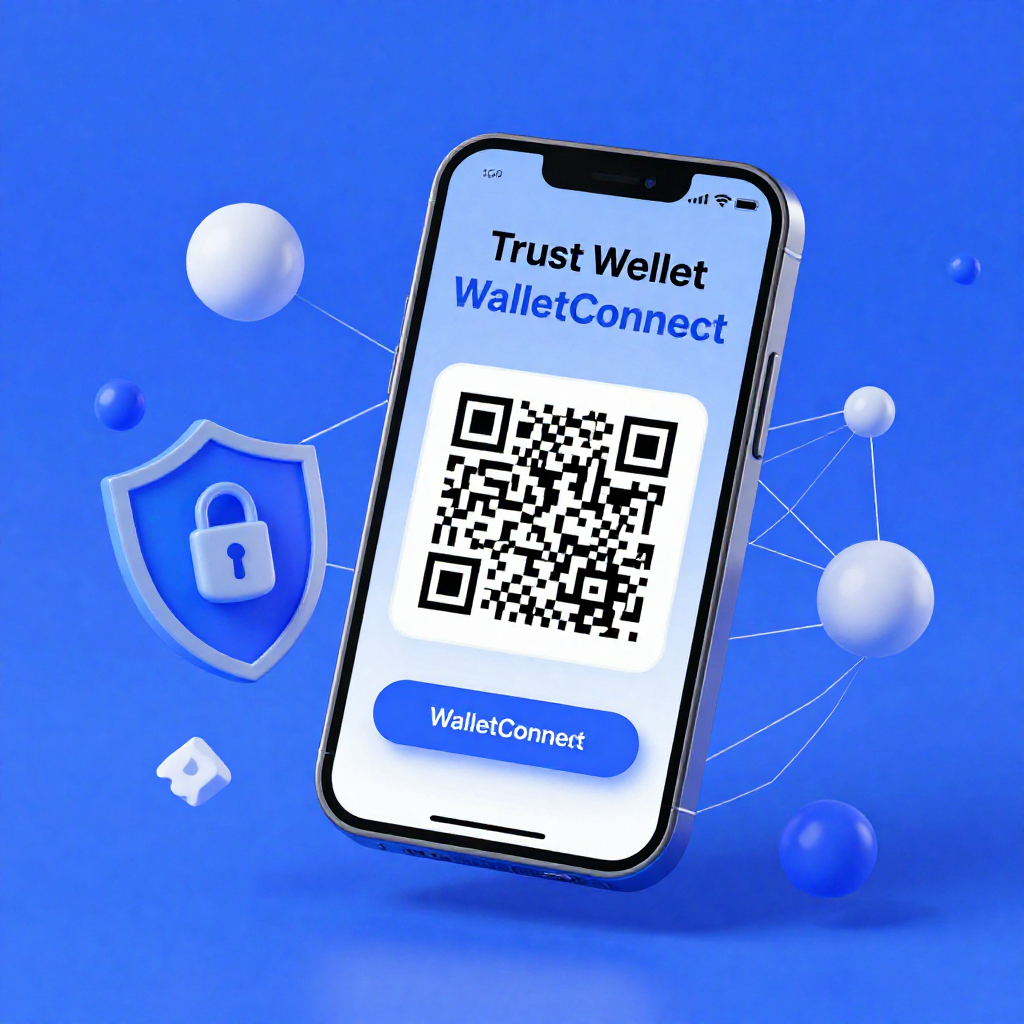
You connect using WalletConnect by scanning a QR code or opening a deep link, which creates an encrypted bridge between your wallet and the DApp.
1
Open a DApp
For example, Uniswap or OpenSea.
2
Click "Connect Wallet"
Start the connection flow.
3
Select WalletConnect
Choose it from the wallet options.
4
Scan the QR code
Use Trust Wallet's built-in scanner.
5
Approve the connection
Confirm the session inside your mobile app.
Encrypted by DesignWalletConnect uses end-to-end encryption and always keeps private keys stored locally on your device.
How to Connect Trust Wallet via DApp Browser?
Trust Wallet also connects directly through its integrated DApp browser, which executes smart contracts inside the wallet environment itself.
1
Open Trust Wallet
Launch the app.
2
Tap Browser / Discover
Access the built-in DApp browser.
3
Select a DApp
Choose from the discover list or enter a URL.
4
Tap "Connect Wallet"
Then approve the connection request.
Supported networks include Ethereum, BNB Smart Chain, and Polygon, making this method well suited to mobile DeFi interaction.
How to Connect Trust Wallet to Crypto Exchanges?
Trust Wallet connects to exchanges using WalletConnect or a shared wallet address. Centralized exchanges rely on deposits rather than direct wallet sessions.
Steps
Use WalletConnect with supported exchanges
Copy your wallet address to deposit funds
Match the network — ERC-20, BEP-20, or Polygon
Irreversible RiskSelecting the wrong network when depositing to an exchange leads to irreversible asset loss.
How Do You Connect Trust Wallet to a Desktop DApp?
You connect to desktop DApps using WalletConnect or a browser extension bridge — desktop sites generate a QR code for mobile approval.
1
Open the DApp on desktop
Load it in your desktop browser.
2
Click "Connect Wallet"
Choose WalletConnect from the list.
3
Scan the QR code
Use your mobile Trust Wallet app.
4
Approve the session
Alternatively, use the Trust Wallet browser extension directly without a QR code, if available.
How to Secure Your Trust Wallet Connection?
Trust Wallet secures connections using private key isolation and encryption, but security still depends on user verification and session management.
Security Rules
Never share your seed phrase or private key
Verify official DApp domains
Disconnect inactive sessions
Enable biometric authentication
Trust Wallet does not store user data on centralized servers.
Why Is Trust Wallet Not Connected?
Trust Wallet fails to connect due to network mismatch, an outdated app version, or session errors — most failures involve expired WalletConnect sessions.
Steps to Fix
Update the Trust Wallet app
Check your internet stability
Match the DApp's network
Reset the WalletConnect session
WalletConnect vs DApp Browser: Which Is Better?
WalletConnect offers cross-device flexibility, while the DApp browser offers faster in-app access.
Feature
WalletConnect
DApp Browser
Device support
Mobile + Desktop
Mobile only
Connection method
QR code / deep link
Direct in-app
Speed
Moderate
Fast
Security layer
Encrypted session
Local interaction
Both methods rely on private key signing and smart contract execution underneath.
Which Blockchain Networks Does Trust Wallet Support for Connection?
Network
Token Standard
Common Use Case
Ethereum
ERC-20
DeFi, NFTs
BNB Smart Chain
BEP-20
Low-fee trading
Polygon
ERC-20
Scalable DApps
What Data Does Trust Wallet Share When Connecting?
Trust Wallet shares your public wallet address and signed transaction approvals — it never exposes private keys or seed phrases.
Shared
Never Shared
Public address
Private key
Transaction signatures
Recovery phrase
Network selection
Personal identity data
What Happens After Connecting a Trust Wallet?
Once connected, Trust Wallet enables transaction approval and smart contract execution — every blockchain interaction requires a manual confirmation.
What You Can Do
Sign blockchain transactions
Approve token swaps and staking
Interact with NFTs and DeFi protocols
Quick Connection Checklist
Checklist
Install Trust Wallet (iOS/Android)
Backup your seed phrase securely
Enable biometric/PIN authentication
Choose a DApp and click connect
Approve the WalletConnect or browser request
Verify the network and contract details
Frequently Asked Questions
Open the DApp, click Connect Wallet, select WalletConnect, then scan the QR code with your Trust Wallet app and approve the session.
Yes, as long as it's a verified DApp domain — Trust Wallet only shares your public address and signed approvals, never your private key or seed phrase.
Most failures come from an expired WalletConnect session, a network mismatch, or an outdated app version — updating the app and resetting the session usually fixes it.
WalletConnect works across mobile and desktop via QR code and offers moderate speed with an encrypted session; the DApp browser is mobile-only but faster since it's a direct in-app connection.
Only your public wallet address, transaction signatures, and network selection — private keys, recovery phrases, and personal identity data are never shared.