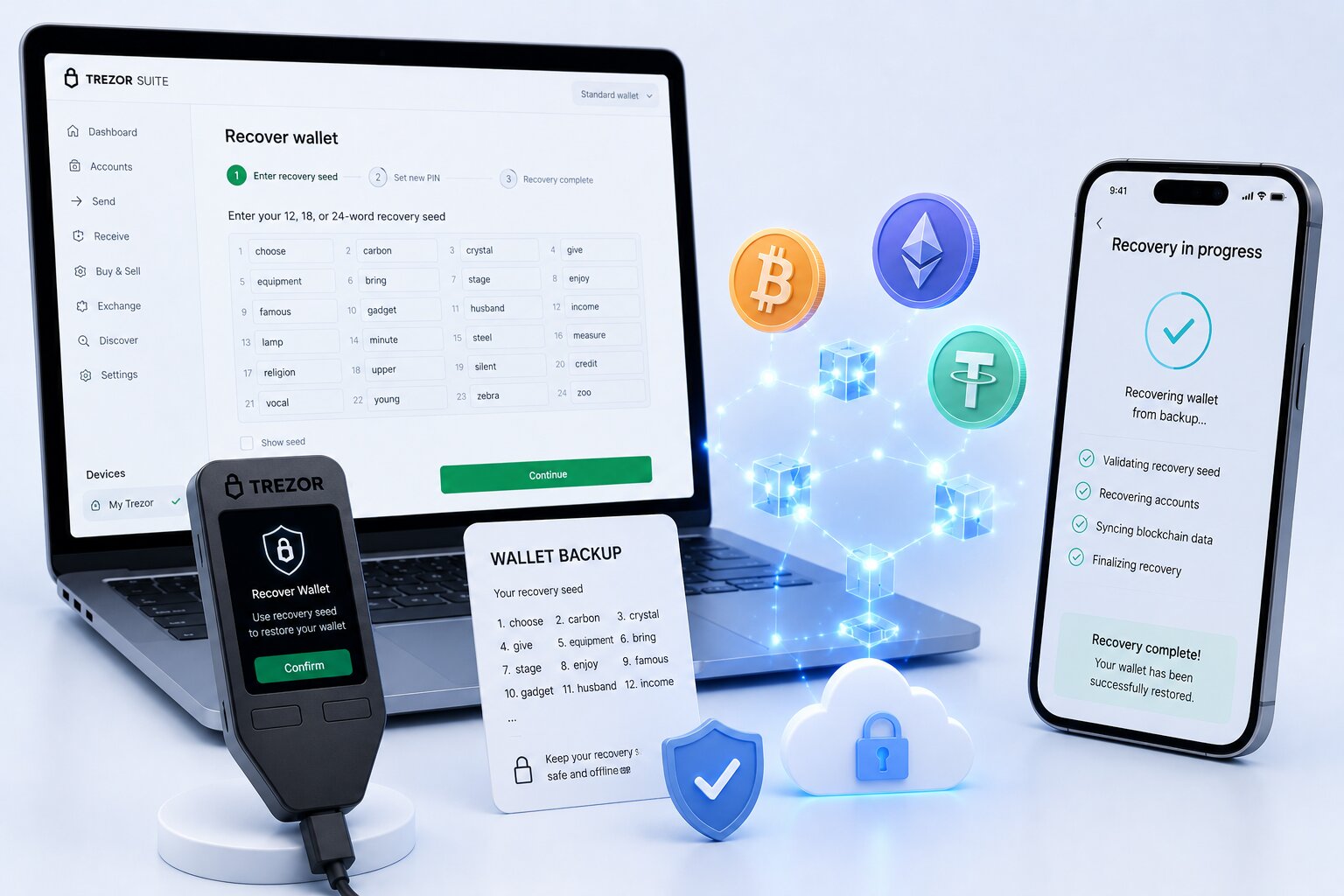
Trezor wallet recovery restores cryptographic access to Bitcoin, Ethereum, Solana, and all supported blockchain accounts using the wallet backup — the ordered word sequence generated during device setup.
The hardware device does not store assets — blockchains do. Recovery restores the private keys needed to access those on-chain balances. This guide walks through every recovery scenario, model by model.
Scam Warning: Services asking users to email their wallet backup (seed phrase) to “recover” funds are scams. No legitimate service recovers a fully lost backup. Trezor support will never request the wallet backup under any circumstances.
Which Trezor Recovery Situation Matches Yours?
Situation
Required Items
Recoverable?
Lost or broken device
Wallet backup only
Yes
Forgot PIN — device accessible
Device + wallet backup
Yes
Empty wallet after recovery
Device + correct passphrase
Yes — fix passphrase
Multi-share (Shamir) shares available
Threshold number of shares
Yes
Incomplete backup (missing words)
Near-complete backup
Limited — reconstruction only
Lost backup + lost device
Nothing
Permanent loss
What Is Trezor Wallet Recovery — Technically?
Wallet recovery regenerates the master private key from the backup words using the BIP-39 or SLIP-39 cryptographic standard. The device deterministically recreates all wallet addresses and blockchain accounts from that key — the same backup always produces the same addresses regardless of which compatible device or software is used.
Crypto assets exist on public blockchains, not inside the hardware device — a wiped, lost, or damaged device destroys no funds. Recovery restores access credentials: Bitcoin addresses, Ethereum accounts, Solana keys, and every other account derived from the seed are all regenerated from the same backup.
Wallet Backup Terminology and Formats
Trezor renamed “recovery seed” to “wallet backup” in 2024. Both terms are interchangeable across guides: wallet backup, recovery seed, seed phrase, mnemonic phrase, secret recovery phrase, BIP-39 phrase, and SLIP-39 phrase all refer to the same mechanism.
Backup Type
Standard
Word Count
Default Model
Single-share
BIP-39
24 words
Model One
Single-share
BIP-39
12 words
Model T
Single-share
SLIP-39
20 words
Safe 3/5/7 (from June 2024)
Multi-share (Shamir)
SLIP-39
20 words per share
Optional — Safe 3/5/7, Model T
Estimated Recovery Times by Method
Recovery Method
Estimated Time
Notes
12-word BIP-39
5–10 minutes
Model T — touchscreen entry
24-word BIP-39
10–15 minutes
Model One — scrambled entry via Suite
20-word SLIP-39 single-share
8–12 minutes
Safe 3/5/7 — sequential device entry
Multi-share Shamir (2-of-3)
15–30 minutes
Depends on share locations
PIN reset + recovery
15–20 minutes
Includes factory reset + firmware reinstall
Dry Run check only
3–5 minutes
No wipe — verification only
How Do You Recover a Trezor Wallet — Step by Step?
Safe 3, Safe 5, or Safe 7
Safe series devices enter all backup words directly on the hardware screen — no word entry on the computer or in Trezor Suite.
1
Connect and reset if needed
Connect via USB, open Trezor Suite. If PIN-locked, go to Settings → Device → Factory reset first.
2
Start recovery
Select “Recover wallet” → “Start Recovery” → confirm on device, then select word count.
3
Enter words
Enter each word sequentially using device buttons or touchscreen, selecting from suggestions carefully.
4
Finish setup
Confirmation message appears — set a new PIN and accounts sync in Trezor Suite.
Any website or application asking for word entry on the computer screen during Safe 3/5/7 recovery is fraudulent — close it immediately.
Model One Recovery — Scrambled Entry
Model One recovery uses Trezor Suite on the computer for word entry, with a critical mechanism: words are entered in scrambled order shown on the device, not the written sequence. The device displays a position number — enter the word at that position from the written backup. This prevents the computer from reconstructing the full backup sequence, protecting against keyloggers.
Model T Recovery — Touchscreen Only
Model T recovery is entirely touchscreen-based. Select word count (12 for BIP-39 default or 20 for SLIP-39), enter each word in sequential order on the touchscreen, then set a new PIN once confirmed.
Forgot Trezor PIN — How Do You Recover?
A forgotten PIN cannot be bypassed — the hardware security mechanism requires a factory reset before the wallet backup can be restored. Crypto assets are unaffected by the reset since balances live on-chain, not on the device.
Verify the wallet backup is complete and readable before proceeding.
Open Trezor Suite → Settings → Device → Factory reset.
Tick both confirmation boxes → confirm on the device.
The device wipes and returns to factory state; reconnect to reinstall firmware.
Select “Recover wallet” and follow the model-specific steps above.
Set a new PIN after successful restoration.
Run the Dry Run (Check wallet backup) before resetting to confirm the backup is valid — a reset without a verified backup creates an unrecoverable situation.
Why Does the Recovered Wallet Show Zero Balance?
A zero-balance wallet after recovery indicates a different wallet was restored than the one holding the funds. Trezor generates a mathematically unique wallet for every combination of backup words and passphrase — a single incorrect character produces an entirely different address set with zero balance.
Cause
What Happened
Fix
Wrong passphrase entered
Different hidden wallet opened, no error shown
Re-enter exact passphrase character by character
Incorrect word order
Different wallet generated
Re-enter in exact written or scrambled order
Different backup restored
Backup from a different wallet loaded
Locate the correct backup
Wrong blockchain account
Correct wallet, account not added
Add account for the asset manually
Hidden wallet not enabled
Passphrase wallet requires re-entry
Settings → Security → Passphrase
How Do You Recover a Multi-Share (Shamir) Backup?
SLIP-39 Multi-share Backup requires entering the threshold number of 20-word shares on the device. Staggered recovery allows shares stored in different locations to be entered at different times — disconnecting the device puts it into Recovery Mode, remembering entered shares until reconnected with the next one.
Scheme
Threshold
Shares Lost
Recoverable
2-of-3
2
1 lost
Yes
2-of-3
2
2 lost
Permanent loss
3-of-5
3
2 lost
Yes
3-of-5
3
3 lost
Permanent loss
Individual SLIP-39 shares reveal no information about the master key — an attacker with fewer shares than the threshold cannot reconstruct any private keys. Below-threshold loss is cryptographically permanent.
Recovering a Hidden Wallet Protected by a Passphrase
A passphrase-protected hidden wallet requires both the wallet backup AND the exact passphrase. Complete the standard recovery first, then go to Settings → Security → Passphrase and enter the exact passphrase — case-sensitive, character-exact, including spaces and special characters.
Entering an incorrect passphrase opens a different valid hidden wallet with zero balance — no error message appears. A forgotten passphrase results in permanent, irrecoverable loss — Trezor support has confirmed no recovery method exists.
Can You Recover a Trezor Wallet on Another Wallet App?
Yes — BIP-39 single-share backups from Trezor are compatible with any BIP-39-supporting wallet application, including Electrum, Sparrow, MetaMask, BlueWallet, and Ledger hardware devices.
Wallet App
Compatible Backup
Supported Assets
Electrum
BIP-39 (12/24 words)
Bitcoin only
Sparrow
BIP-39 (12/24 words)
Bitcoin only
MetaMask
BIP-39 (12/24 words)
Ethereum, EVM, ERC-20
BlueWallet
BIP-39 (12/24 words)
Bitcoin, Lightning
Ledger
BIP-39 (12/24 words)
Multi-chain
SLIP-39 Multi-share Backup is not compatible with most third-party wallets — Electrum and Sparrow currently support SLIP-39 recovery.
How Do You Verify a Backup Before You Need It — Dry Run?
The Dry Run (Check wallet backup) verifies that the physical backup matches the device’s loaded wallet without modifying or wiping anything. Connect the device, go to Settings → Security → Check wallet backup, then enter all backup words in correct sequential order. “Backup OK” confirms the words are complete and match the loaded wallet.
Run a Dry Run before every factory reset, firmware update, or device wipe — it takes 3–5 minutes and prevents permanent loss caused by an undetected transcription error.
Trezor Recovery Errors and Fixes
Error
Cause
Fix
“Recovery failed”
Wrong word order or misspelled word
Re-enter carefully in exact sequence
“Invalid wallet backup”
Word not in BIP-39 word list
Check for similar-sounding words
“Invalid Recovery Share”
SLIP-39 share words wrong or out of order
Re-enter in sequential written order
“Does not match current device”
Different backup than loaded
Expected when loading a new backup
“Empty wallet after recovery”
Wrong passphrase or backup
Verify passphrase and backup
Common Mistakes When Recovering a Trezor Wallet
Avoid These Errors
Entering the backup on any website — permanent compromise. Enter ONLY on the device screen.
Wrong sequential order on Model One — follow the scrambled position order shown on device.
Wrong passphrase capitalization — verify exact passphrase, every character counts.
Factory reset without a Dry Run — always check the backup before any reset.
Photographing the wallet backup — paper only, never digital storage.
Frequently Asked Questions
Connect a new or wiped device, open Trezor Suite, select “Recover wallet,” and enter the backup words in the correct order — sequential for Safe 3/5/7 and Model T, scrambled position order for Model One. Set a new PIN and accounts reload after sync.
No. Trezor never stores the backup. Without the complete backup — or threshold SLIP-39 shares — no entity including Trezor can restore the wallet. Any service claiming otherwise is a scam.
You cannot bypass a forgotten PIN. Factory reset via Settings → Device → Factory reset, confirm on device, reinstall firmware, then recover using the wallet backup and set a new PIN.
Standard recovery (Model One only) enters words into Trezor Suite in scrambled order to prevent keyloggers. Advanced recovery enters words only on the device. Safe 3/5/7 and Model T always use device-only entry.
Recover the main wallet first, then enable passphrase entry in Settings → Security → Passphrase and enter the exact original passphrase. A forgotten passphrase results in permanent loss with no recovery method.