How to Connect Phantom Wallet to a dApp: Complete Guide
How to Connect Phantom Wallet to a dApp: Complete Guide
CrisCoin 12 min readPhantom
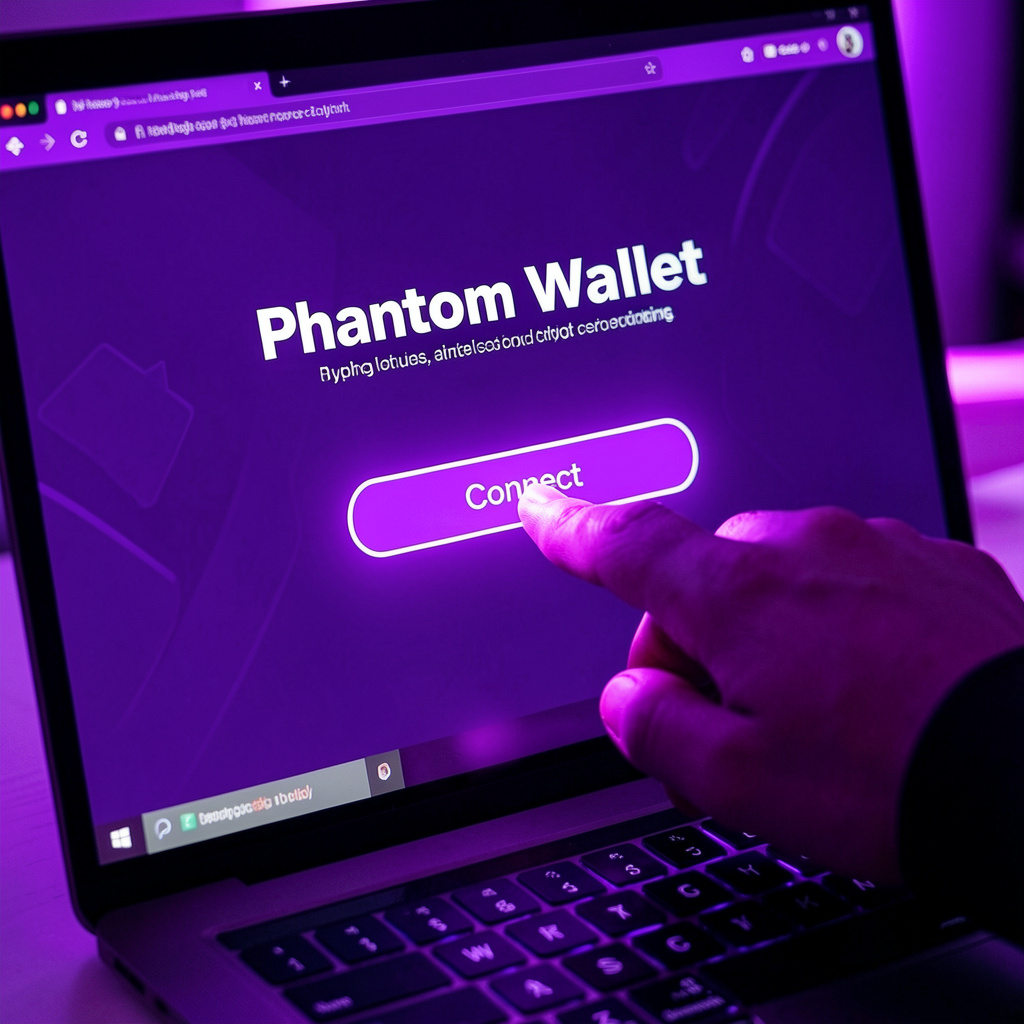
You connect Phantom Wallet by installing the extension, unlocking it, opening a supported dApp, and approving the connection request — Phantom signs messages and authorizes transactions without ever exposing your private keys.
Phantom is central to the Solana Web3 ecosystem — platforms like Jupiter, Magic Eden, Raydium, and Orca all rely on a wallet connection to identify users.
Platform
Category
Jupiter
Token swap aggregator
Magic Eden
NFT marketplace
Raydium
DeFi protocol
Orca
Decentralized exchange
What Is a Phantom Wallet?
Phantom Wallet is a non-custodial cryptocurrency wallet that stores Solana assets and connects users to decentralized applications, supporting tokens, NFTs, and Web3 authentication through both browser extensions and mobile apps.
Core Capabilities
Stores SOL and SPL tokens
Supports Solana NFTs
Connects to Web3 applications
Signs transactions locally
What Do You Need Before Connecting Phantom?
You need a Phantom Wallet installation, a funded Solana address, a compatible browser or device, and a dApp that supports Phantom connections.
Browser
Phantom Support
Google Chrome
Supported
Brave
Supported
Mozilla Firefox
Supported
Microsoft Edge
Supported
The Solana network charges small fees for operations like token swaps, NFT purchases, and DeFi interactions — so you’ll need a small SOL balance to complete transactions.
How Do You Connect Phantom Wallet to a dApp?
Users connect by clicking “Connect Wallet,” selecting Phantom, and approving the request inside the Phantom popup.
1
Install the Phantom extension
Download it from the official source.
2
Unlock the wallet
Enter your password to access it.
3
Open the target dApp website
Navigate to the platform you want to use.
4
Click “Connect Wallet”
This is on the dApp’s interface.
5
Select Phantom Wallet
Choose it from the wallet list.
6
Approve the connection request
Confirm in the Phantom popup — the dApp then displays your connected address.
Can You Connect Phantom Wallet on Mobile?
You connect on mobile by opening a dApp inside the Phantom in-app browser and approving the connection request.
Mobile Connection Steps
Install the Phantom mobile app
Unlock the wallet
Open the browser tab inside Phantom
Navigate to a Solana dApp
Tap Connect Wallet, then approve the request
Does Phantom Support WalletConnect?
Yes — Phantom supports WalletConnect for compatible dApps. You scan a QR code or approve a session request to establish an encrypted connection, allowing you to sign transactions securely without sharing private keys.
Why Does Phantom Wallet Fail to Connect?
Cause
Effect
Locked wallet
Prevents connection approval
Extension conflict
Blocks Web3 provider injection
Unsupported dApp
Rejects Phantom wallet
Network congestion
Delays transaction confirmation
Is Connecting Phantom Wallet Safe?
Yes — Phantom signs authentication messages locally and never exposes private keys to dApps. Security features include local transaction signing, private key encryption, permission approval prompts, and connected site management.
Which dApps Support Phantom Wallet?
Category
Platform
DEX Aggregator
Jupiter
NFT Marketplace
Magic Eden
DeFi Protocol
Raydium
Liquidity Platform
Orca
How Do You Disconnect Phantom Wallet?
You disconnect by selecting “Disconnect Wallet” inside the dApp, or by revoking site permissions in Phantom’s own settings under Connected Apps. Once disconnected, the dApp loses access to your address and stops receiving signature requests.
Frequently Asked Questions
Connecting itself is free. You only need SOL when you actually perform a transaction, since it covers the network fee.
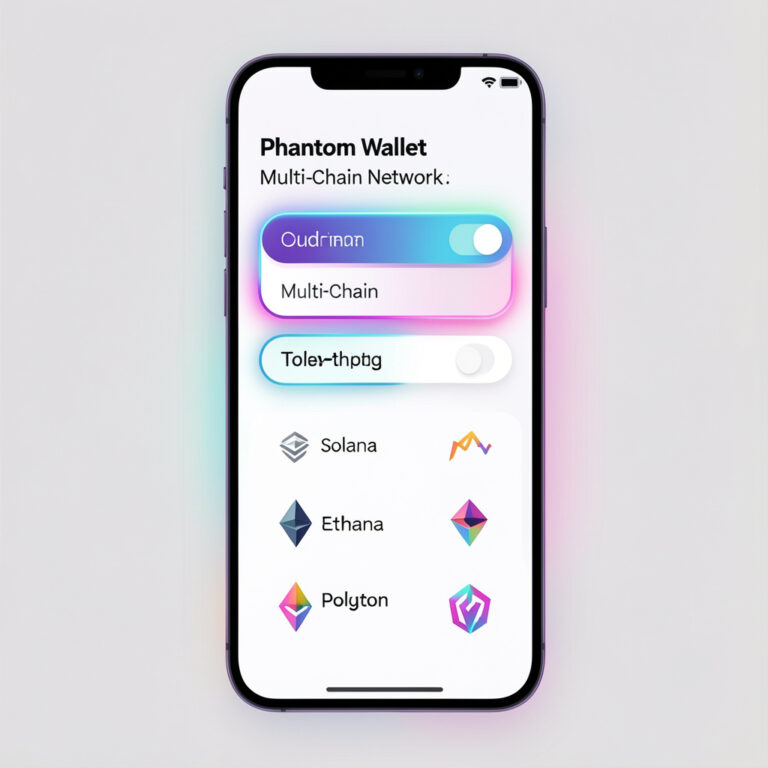
Yes, Phantom also supports Ethereum and Polygon networks alongside its core Solana functionality.
Review the request carefully in the Phantom popup. If anything seems unusual, decline and verify the site’s legitimacy first.
Common causes include a locked wallet, conflicting browser extensions, an unsupported dApp, or temporary network congestion.
Yes. You can connect Phantom on multiple devices, and WalletConnect makes cross-device syncing between mobile and desktop easy.