How to Send Crypto Using Phantom Wallet: Complete Guide
How to Send Crypto Using Phantom Wallet: Complete Guide
CrisCoin 11 min readPhantom
Sending from Phantom Wallet means initiating a blockchain transaction that transfers SOL or SPL tokens to another Solana address — Phantom signs it with your private key and broadcasts it to the network.
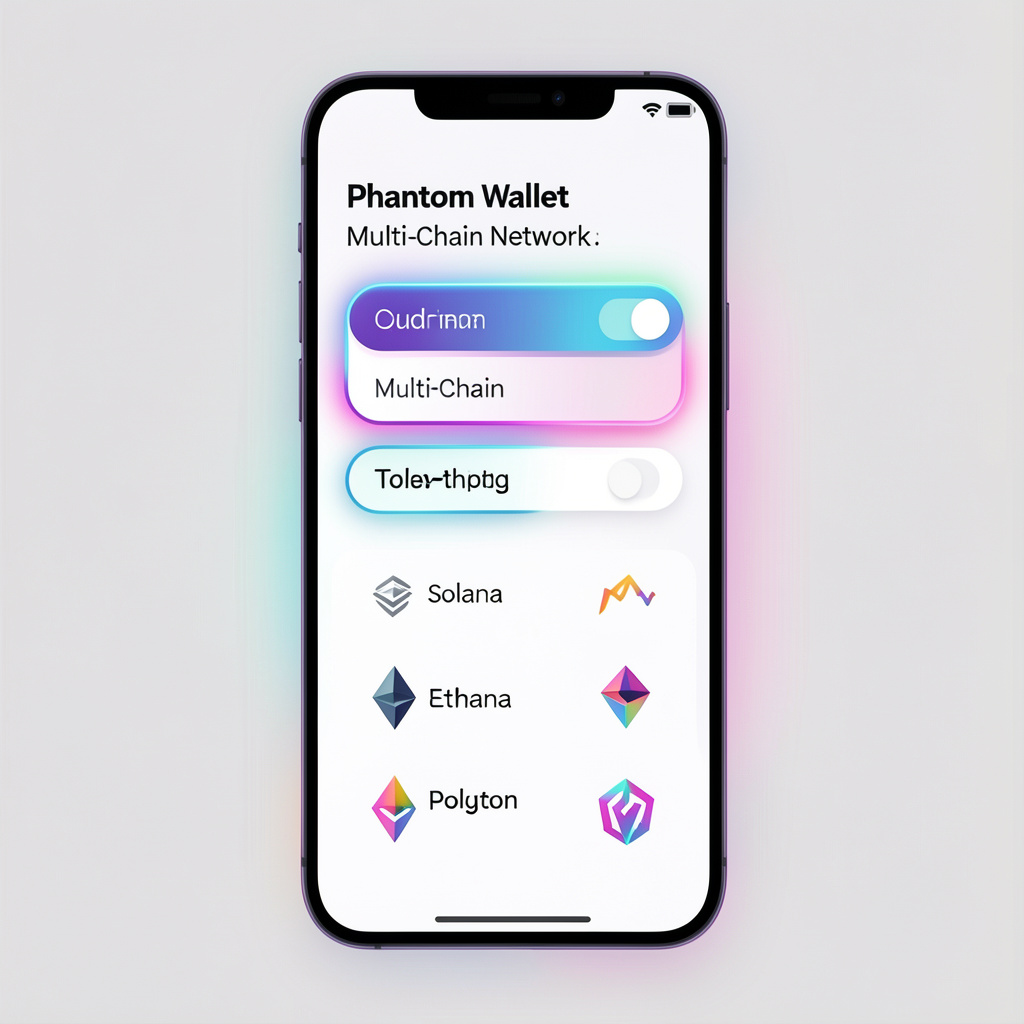
Phantom is best known for Solana, but it also supports Ethereum and Polygon networks.
Requirement
Purpose
Wallet
Stores your private keys and tokens
Recipient address
Destination where the crypto will be sent
Native token
Used to pay the network transaction fee
Internet connection
Allows the transaction to broadcast
What Does “Send from Phantom Wallet” Mean?
Sending from Phantom means transferring SOL or SPL tokens from your address to another Solana address. Key transaction elements include the sender address, recipient address, token type, network fee, and blockchain confirmation.
What Do You Need Before Sending Crypto?
You need Phantom Wallet installed, a crypto balance, a recipient address, and enough native token balance for network fees. For example, sending on Solana requires a small amount of SOL, sending on Ethereum requires ETH for gas, and sending on Polygon requires MATIC.
Step-by-Step: How to Send SOL from Phantom Wallet
Sending SOL requires selecting the token, entering a recipient address, confirming the amount, and approving the transaction.
1
Open Phantom Wallet
Use the browser extension or the mobile app.
2
Click “Send”
Phantom displays a Send / Receive interface.
3
Enter the recipient address
Paste it, scan a QR code, or select a saved contact — always verify it first.
4
Select token and enter amount
Choose SOL or an SPL token like USDC, BONK, or RAY.
5
Review the transaction fee
Phantom shows the amount sent, network fee, and total deduction.
6
Confirm the transaction
Phantom signs it and broadcasts it to the Solana blockchain.
How Do You Check Phantom Transaction Status?
You check status using the transaction hash (TXID) on a Solana explorer such as Solscan, Solana Explorer, or Solana Beach.
Status
Meaning
Pending
Awaiting network confirmation
Confirmed
Transaction included in a block
Finalized
Fully confirmed on Solana
What Are SPL Tokens in Phantom Wallet?
SPL tokens are fungible tokens built on the Solana Program Library standard — examples include USDC (Solana version), BONK, Raydium (RAY), and Marinade (MNDE). They send the same way as SOL, and Phantom handles associated token accounts automatically.
What Are Phantom Wallet Transaction Fees?
Phantom uses Solana network fees, which are extremely low compared to Ethereum gas fees.
Network
Average Fee
Solana
$0.0002 – $0.002
Ethereum
$1 – $50+
What Security Checks Should You Follow?
Before You SendVerify the recipient address carefully, send a small test transaction first, avoid copying addresses from unknown sources, never share your seed phrase, and confirm you’re on the correct network. Phantom will never ask for your private key.
Why Does a Phantom Transaction Fail?
Error
Cause
Fix
Insufficient SOL
No fee balance
Add SOL
Invalid address
Non-Solana address
Verify address
Network congestion
Temporary delay
Retry later
Token account missing
Recipient not initialized
Phantom auto-creates it
Can You Send Crypto Using QR Codes in Phantom?
Yes. Open Send, tap Scan QR, scan the recipient’s wallet code, enter the amount, and confirm — QR scanning reduces copy-paste errors significantly.
Are There Sending Limits in Phantom Wallet?
Phantom does not impose transfer limits — limits depend on your wallet balance, the required network fee, and token liquidity on the recipient’s platform. Large transfers confirm quickly thanks to Solana’s high throughput.
Frequently Asked Questions
Solana transactions typically confirm in 2–10 seconds thanks to its Proof-of-History consensus model, which allows thousands of transactions per second.
No. Blockchain transactions cannot be canceled once broadcast, so always verify the address and amount before confirming.
Yes, you need a small SOL balance to pay the network fee even when sending an SPL token — typically around 0.000005 SOL per transaction.
Yes. Phantom can send SOL or SPL tokens to any valid Solana wallet address, including Solflare, Backpack, and Ledger Solana accounts.
Yes, Phantom stores keys locally with encryption, supports hardware wallet integration, and shows transaction simulation warnings before you sign.