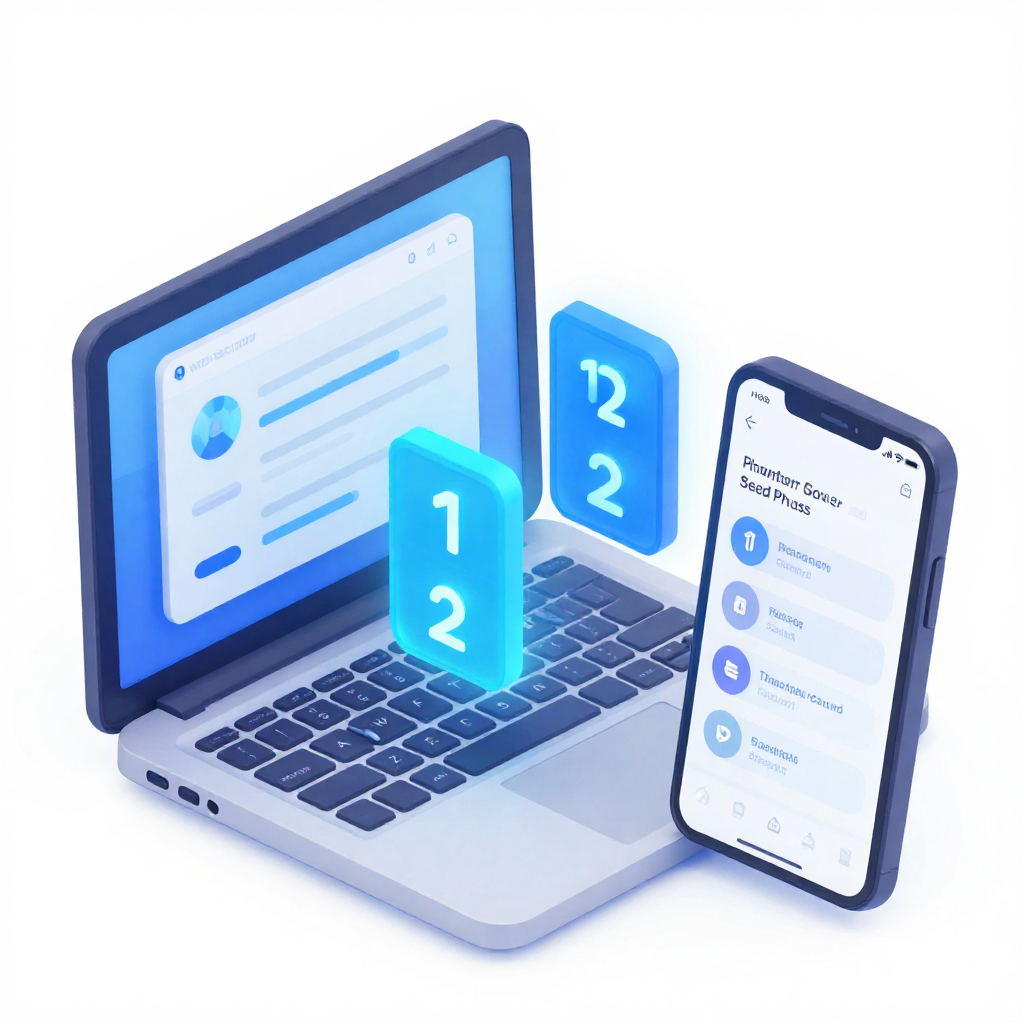
How to Import a Seed Phrase into Phantom Wallet (Browser + Mobile)

Home / Blog / Article
Facebook Twitter LinkedIn
Copied! Paste in ChatGPT πŸš€
How to Import a Seed Phrase into Phantom Wallet

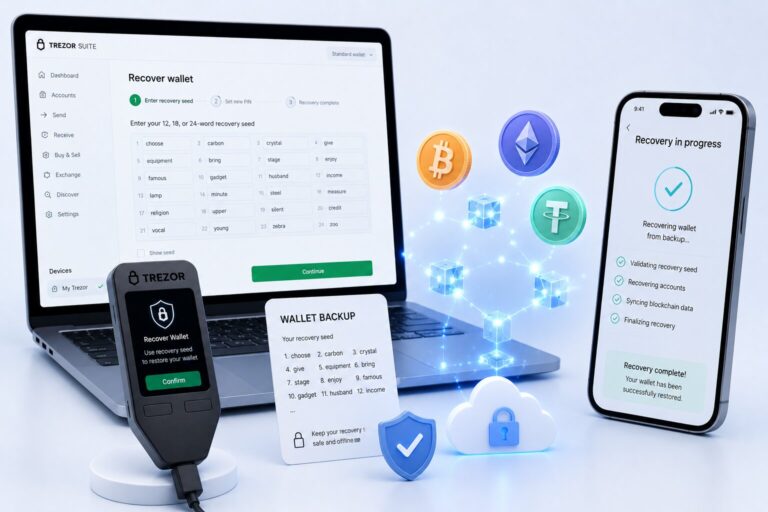
Importing a seed phrase restores a wallet by deriving all accounts from a 12- or 24-word BIP-39 phrase. Phantom Wallet processes the phrase locally and reconstructs blockchain addresses without storing the phrase.

This section defines core mechanics. browser extension on desktop, mobile app on iOS and Android, adding a second wallet to an existing Phantom account, and fixing every error you might hit along the way – including missing accounts, invalid phrase errors, and derivation path conflicts.

How does Phantom Wallet derive accounts from a seed phrase?

Phantom Wallet derives private keys from a seed phrase using deterministic algorithms defined by BIP-39 and derivation paths. Each derived key controls a blockchain address across supported networks like Solana and Ethereum.

  • Seed phrase generates master key
  • Master key derives private keys
  • Private keys control addresses

What is the difference between a recovery phrase and a private key?

A recovery phrase controls all wallet accounts. A private key controls one address. Recovery phrases derive private keys. Use recovery phrases for full wallet restoration and private keys for single-account imports.

CredentialScopeFunction
Recovery PhraseAll accountsRestores full wallet
Private KeySingle accountGrants address access

A Secret Recovery Phrase is a 12- or 24-word phrase that acts as the master key to your entire wallet. Importing it into Phantom restores every account linked to that phrase across all supported networks – Solana, Ethereum, Polygon, and Bitcoin. This is the credential to use when you want to restore a full wallet with multiple accounts.

A private key, by contrast, controls access to a single address on a single blockchain network. It is derived from your recovery phrase but does not replace it. Use a private key import only when you need to add one specific account – for example, a Solana address you created in another app – without touching your main wallet.

For most users migrating a wallet or reinstalling Phantom, the Secret Recovery Phrase is the correct import method.

12-Word vs 24-Word Recovery Phrase in Phantom

Phantom natively generates 12-word recovery phrases for wallets created within the app. If you are importing a 24-word recovery phrase, that wallet was originally created outside of Phantom – in apps like Ledger Live, older versions of Solflare, or Phantom Terminal (trade.phantom.com), which creates its own separate 24-word trading account.

Phantom supports importing both 12-word and 24-word BIP-39 phrases. If your phrase has a different word count, the wallet was generated using a non-BIP-39 standard and cannot be imported into Phantom.

What should you check before importing a seed phrase?

You must verify environmental security before entering a seed phrase because exposure leads to irreversible asset loss.

  • User installs Phantom from official site
  • Device remains private and malware-free
  • Network stays trusted and local
  • Screen sharing remains disabled

Verify You Are Using the Official Phantom Extension

Before typing a single word of your recovery phrase, confirm the Phantom browser extension is genuine. Scam versions of Phantom exist on extension stores and phishing sites, designed specifically to harvest seed phrases at the moment of import.

To verify: install Phantom only from phantom.com/download. In your browser’s extension manager, check that the extension ID matches the one listed on Phantom’s official site. Never install Phantom from a link sent via Discord, Telegram, or email – even if the message appears to come from a known contact.

Never Import Your Seed Phrase on a Public or Shared Device

Your seed phrase should only be entered on a device you own, on a network you control, with no screen-sharing or remote-access software running. Avoid importing on:

  • Public computers (libraries, cafes, hotel business centers)
  • Devices with keyloggers, clipboard managers, or unknown browser extensions installed
  • Any screen currently being shared via Zoom, Teams, or similar tools

If you must import on a new device, complete the import, transfer your funds to a freshly generated wallet, and revoke the old phrase. Phantom’s own guide on moving funds to a wallet with a new recovery phrase walks through this process step by step.


How to Import a Seed Phrase into Phantom β€” Browser Extension (Desktop)

You import a seed phrase on desktop by selecting β€œI already have a wallet,” entering a 12- or 24-word phrase in order, and confirming import. Phantom restores accounts with onchain activity. 

Step-by-Step: Import on First Install (New Wallet Setup)

Use this method when installing Phantom for the first time and you already have a wallet elsewhere.

  1. Download and install Phantom from phantom.com/download.
  2. When the onboarding screen appears, click I already have a wallet.
  3. Click Import Recovery Phrase.
  4. Enter your 12- or 24-word Secret Recovery Phrase – one word per field, left to right, in the exact original order.
  5. Click Import Wallet. Phantom scans for all accounts linked to this phrase that have previous onchain activity.
  6. Click Continue.
  7. Create a password. This password unlocks Phantom in your current browser only – it does not replace your recovery phrase.
  8. Click Get Started. Your wallet and all active accounts are now restored.

Step-by-Step: Import into an Existing Phantom Wallet (Add Account Method)

Use this method when Phantom is already installed and you want to add a second wallet – for example, importing an old MetaMask or Trust Wallet alongside your current Phantom wallet.

  1. Click your profile avatar in the upper-left corner of the Phantom extension.
  2. Click the Add Account (plus icon) in the lower-left corner.
  3. Click Import Recovery Phrase.
  4. Enter your recovery phrase and click Import Wallet.
  5. Phantom retrieves all accounts linked to that phrase with prior onchain activity.
  6. Click Continue.

The imported wallet now appears as a selectable account in your Phantom profile switcher. You can rename it by clicking the pencil icon next to the account name.

How do you import a seed phrase into Phantom Wallet on mobile?

You import a seed phrase on mobile by selecting β€œI already have a wallet,” entering the phrase with spaces, and confirming import. Phantom restores accounts and prompts device authentication. 

Import on First Launch (I Already Have a Wallet)

  1. Open the Phantom mobile app.
  2. Agree to the Terms of Service, then tap I already have a wallet.
  3. Tap Other import options β†’ Import Seed Phrase.
  4. Enter your 12-word recovery phrase in the exact order, with one space between each word.
  5. Tap Import Recovery Phrase.
  6. Phantom identifies all accounts derived from this phrase that have previous activity. Tap Continue.
  7. Proceed to device authentication setup (see below).
  8. Tap Get Started. Your wallet is restored.

Import into an Existing Phantom Mobile Wallet

Use this method when Phantom is already set up on your phone and you want to add a second wallet.

  1. Tap your profile avatar in the upper-left corner.
  2. Tap Add Account at the bottom of the screen.
  3. Tap Import Recovery Phrase.
  4. Enter your recovery phrase, then tap Import.
  5. Tap Continue after Phantom imports the phrase.

Enable Device Authentication After Import

After importing on mobile, Phantom prompts you to enable device authentication – Face ID, fingerprint, or passcode. This setting unlocks Phantom on your current device only. 

It does not replace your Secret Recovery Phrase and does not provide any additional protection for your onchain funds. 

Enable it to prevent unauthorized access if your phone is lost or stolen, but understand it is a local convenience layer, not a cryptographic security control.

Phantom Seed Phrase Import Not Working β€” Fix Every Common Error

“Invalid Secret Recovery Phrase” Error

This error appears when Phantom cannot validate the phrase you entered. It does not mean your wallet is gone – it means the input is incorrect. Work through these checks in order:

On the browser extension: Each word must be entered in its own field, left to right, with no extra characters. Autocomplete can silently alter words – disable it before typing.

On mobile: Words must be separated by a single space. Double spaces, leading spaces, or trailing spaces all trigger the invalid error.

Word spelling: Every valid word comes from the BIP-39 English word list – a fixed set of 2,048 words. If you’re unsure of a word’s spelling, search “BIP-39 English word list” and verify each word against the list before re-entering.

Word count: Phantom accepts 12-word and 24-word phrases only. A phrase of any other length will always fail validation.

Accounts Missing After Import

Phantom automatically restores only accounts with previous on chain activity β€” swaps, sends, or receives – ordered from oldest to newest. Accounts that were created but never used (no transactions, zero balance) do not appear automatically.

To restore a missing inactive account manually:

  1. Select your profile avatar in the upper-left corner.
  2. Select Add Account β†’ Create New Account β†’ Create.
  3. Repeat until the missing account appears.

If you imported a recovery phrase using a private key in your previous setup, those private-key accounts will not reappear – they need to be re-imported individually via Add Account β†’ Import Private Key.

If you have tried adding accounts manually and the expected wallet still does not appear, you are likely using the wrong recovery phrase. Try any other phrases you may have saved, because some wallets use different phrases for different blockchains.

24-Word Phrase Rejected or Wrong Accounts Appear

If you import a 24-word recovery phrase and Phantom shows accounts you don’t recognize – or shows nothing – the most common cause is a derivation path conflict. Some wallet apps generate accounts using derivation paths that Phantom does not support. The phrase is valid, but Phantom derives different addresses from it than the original wallet did.

To confirm: import the same phrase into the app where the wallet was originally created (MetaMask, Solflare, Backpack, etc.) and check whether the expected accounts appear there. If they do, your phrase is correct but those accounts cannot be accessed in Phantom – you’ll need to continue using the original app for those addresses, or transfer the funds to a Phantom-native wallet.

A separate edge case: if you use Phantom Terminal (trade.phantom.com), signing in with a recovery phrase wallet there creates an entirely separate trading account with its own 24-word phrase. This phrase is distinct from your main Phantom wallet phrase. Do not confuse the two.

Ledger Accounts Not Restored After Import

Ledger hardware wallet accounts are never restored automatically when you import a recovery phrase – this is by design. Ledger stores its own seed phrase in a secure element on the device and never exposes it to software wallets.

After reinstalling Phantom, reconnect your Ledger manually:

  1. Select your profile avatar β†’ Add Account β†’ Connect Hardware Wallet.
  2. Plug in and unlock your Ledger device (or enable Bluetooth for Ledger Nano X).
  3. Follow the on-screen instructions to relink your accounts.

Critical warning: Never import your Ledger’s recovery phrase directly into Phantom. Doing so defeats the entire security model of a hardware wallet – your private keys would move from a secure element to software, where they are exposed to all the risks of a hot wallet.

After You Import: How to Keep Your Seed Phrase Safe

Importing successfully is step one. What you do with the phrase afterward determines whether your wallet stays secure for the long term.

Where to Back Up Your Recovery Phrase Offline

Phantom never stores your Secret Recovery Phrase. If you lose it, access to the wallet is permanently gone – Phantom Support cannot recover it for you.

The most resilient backup methods, in order of durability:

  • Metal seed storage plates – fireproof and waterproof; purpose-built for recovery phrases
  • Handwritten paper, stored in multiple physical locations – simple and effective; avoid digital copies
  • Encrypted password manager – acceptable as a secondary backup, never as the only copy

Never photograph your phrase, store it in a notes app, paste it into a messaging app, or save it to cloud storage. Any digital plaintext copy is a liability.

What to Do If Your Seed Phrase May Be Compromised

If you have reason to believe your recovery phrase was exposed – you typed it on an untrusted device, accidentally shared it in a chat, or saw it displayed on screen during a recording – treat it as compromised immediately. A compromised phrase means anyone who saw it has full, irrevocable access to every account it controls.

The only correct response is to migrate your funds to a new wallet with a freshly generated recovery phrase:

  1. Create a new seed-phrase wallet in Phantom and record the new phrase securely offline.
  2. Import your old recovery phrase as a secondary account via Add Account β†’ Import Recovery Phrase.
  3. Transfer all tokens from every account tied to the old phrase to the new wallet.
  4. Once funds are moved, the old wallet can be considered abandoned. Do not continue using it.

Phantom’s guide on transferring funds to a new wallet covers the token-by-token transfer process in detail, including leaving enough SOL or ETH in each account to cover network fees during the move.


FAQ

How do I import a seed phrase into Phantom Wallet?

On the browser extension: click I already have a wallet during setup, then click Import Recovery Phrase and enter your phrase one word per field. On mobile: tap I already have a wallet β†’ Other import options β†’ Import Seed Phrase, enter your phrase with single spaces between words, then tap Import Recovery Phrase. Phantom will restore all accounts with prior onchain activity automatically.

Why is my seed phrase invalid in Phantom?

The most common causes are extra spaces between words, a misspelled word that isn’t on the BIP-39 word list, words entered in the wrong order, or a phrase length other than 12 or 24 words. On the extension, autocomplete can silently corrupt words – disable it and retype carefully. Verify every word against the BIP-39 English word list if the error persists.

Why are some accounts missing after I imported my wallet?

Phantom automatically restores only accounts with previous onchain activity. Accounts that were created but never used will not appear. Add them manually by selecting profile avatar β†’ Add Account β†’ Create New Account β†’ Create, and repeat until the missing account appears. Accounts imported via private key must be re-imported individually using Import Private Key.

Can I import a 24-word seed phrase into Phantom?

Yes. Phantom supports both 12-word and 24-word BIP-39 recovery phrases. A 24-word phrase means the wallet was originally created outside of Phantom – for example in Ledger Live, older Solflare versions, or Phantom Terminal. If the expected accounts don’t appear after import, the original wallet may use a derivation path that Phantom doesn’t support.

What is the difference between a recovery phrase and a private key in Phantom?

A Secret Recovery Phrase is the master key to your entire wallet – it restores all accounts across all supported blockchains. A private key controls one specific address on one specific network. Private keys are derived from the recovery phrase but don’t replace it. Use the recovery phrase to restore a full wallet; use a private key only to add a single account.

Can I use the same seed phrase in multiple wallets?

Yes. Recovery phrases follow the BIP-39 open standard, so the same phrase can be imported into any compatible wallet – MetaMask, Trust Wallet, Solflare, and others. Your accounts and balances appear in any wallet that supports the same blockchain networks. Importing the same phrase into multiple wallets does not compromise security by itself, but it means each wallet app has access to derive your private keys.

Does Phantom store my seed phrase?

No. Phantom never stores your Secret Recovery Phrase on its servers or anywhere outside your device. If the phrase is lost, there is no way to recover it β€” not through Phantom Support, not through any other mechanism. Back it up offline immediately after creating or importing your wallet.

How do I view my recovery phrase in Phantom?

On the browser extension: click your profile avatar β†’ Settings (gear icon) β†’ Manage Accounts β†’ select the account β†’ Show Recovery Phrase β†’ authenticate with your password.

On mobile: tap your profile avatar β†’ tap the pencil icon next to the account β†’ Show Recovery Phrase β†’ authenticate.

If the option shows Show Private Key instead of Show Recovery Phrase, that account was imported using a private key and does not have a recovery phrase attached to it.

Share:

Resend posts

Our insights? Click below to add us as your preferred source on Google
Follow trusted sources to improve your search experience

Send Us A Message