How to Import a Seed Phrase into Trust Wallet (2026)
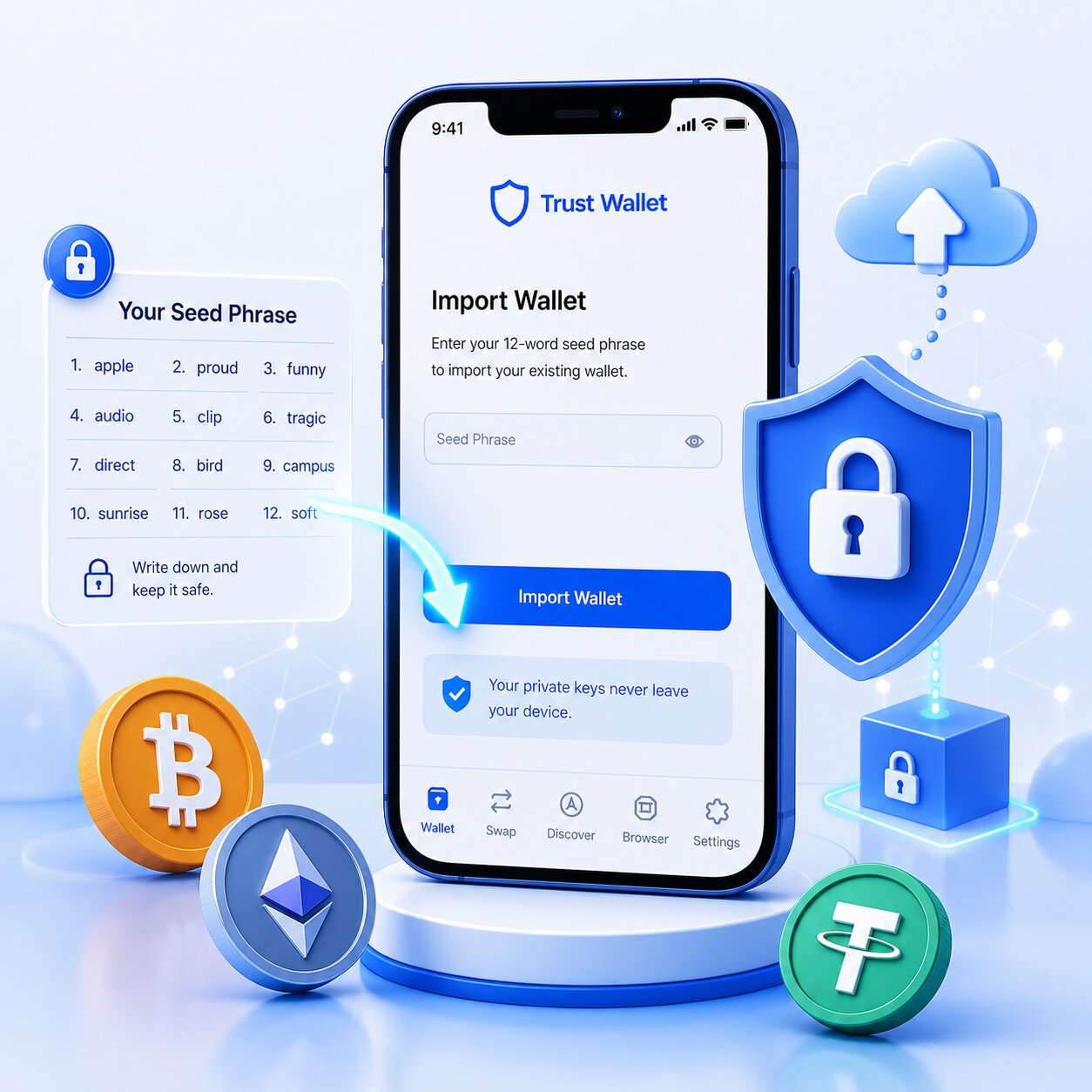
Trust Wallet imports a Seed Phrase by accepting 12 BIP39 words in exact sequence – regenerating the full HD Wallet address tree across 100+ blockchains. Any variation in word or order produces a different cryptographic identity silently.
| Import Method | Scope | Platform | Standard |
| Seed Phrase (12 words) | Multi-coin Wallet – all chains | Mobile + Browser Extension | BIP39 + BIP44 |
| Private Key | Single chain – one address only | Mobile only | Chain-specific |
A Seed Phrase regenerates all private keys through the BIP39 mnemonic standard and BIP44 derivation paths. An HD Wallet derives a deterministic address tree from a single 12-word Seed Phrase. Wrong word order produces a completely different HD Wallet without showing an error message. Trust Wallet never asks for your Seed Phrase, and any request for it indicates a scam.
What is a Seed Phrase and how does Trust Wallet use it for wallet import?
A Seed Phrase is a 12-word BIP39 mnemonic that regenerates all Private Keys in a Trust Wallet HD Wallet. It functions as the master cryptographic backup – one phrase restores access to all chains, all tokens, and all transaction history simultaneously.
A Seed Phrase is also called a Secret Phrase, Recovery Phrase, or Mnemonic Phrase. The BIP39 standard selects 12 words from a fixed 2,048-word English word list. An HD Wallet reconstructs the complete address tree from a single Seed Phrase input. A Seed Phrase authenticates wallet ownership across any BIP39-compatible platform.
How does Seed Phrase differ from a password and a Private Key in Trust Wallet?
A password protects app access only. A Private Key controls one address on one chain. A Seed Phrase regenerates all Private Keys for all chains — it is the master key to the entire HD Wallet.
| Credential | Controls | Scope | Recovers Wallet |
| Password / PIN | App access only | Device-level | No |
| Private Key | One Public Address | Single chain only | Partial – one chain |
| Seed Phrase | All Private Keys | All 100+ chains | Yes – full HD Wallet |
Can a Trust Wallet Seed Phrase be changed or reset after generation?
No. A Seed Phrase cannot be changed, reset, or regenerated for an existing Trust Wallet. It is fixed at the moment of wallet creation using BIP39 cryptographic entropy — no action by the user or Trust Wallet can alter it.
| Question | Answer |
| Can I change my Seed Phrase? | No – fixed at wallet creation |
| Can Trust Wallet reset it? | No – never stored on servers |
| Can I generate a new one for same wallet? | No – new Seed Phrase = new HD Wallet |
| What if I want a new Seed Phrase? | Create a new wallet – transfer assets manually |
- BIP39 entropy generates the Seed Phrase once during wallet creation. The process is irreversible because the original entropy cannot be recreated or modified after the wallet generates the phrase.
- A new Seed Phrase requires creating a new Trust Wallet. Trust Wallet does not transfer or replace an existing Seed Phrase with a new one.
- Assets must be transferred manually to the new wallet. Cryptocurrencies and tokens do not migrate automatically between wallets, even when both wallets belong to the same user.
How do you import a Seed Phrase into a Trust Wallet mobile app – step by step?
Trust Wallet mobile imports a Seed Phrase via “I already have a wallet” on first launch, or via wallet selector for existing users. The process takes under 2 minutes with the 12-word Seed Phrase ready.
Steps – First-time Import (New Installation):
- Download Trust Wallet only from the Apple App Store or Google Play Store. Avoid unofficial websites, APK files, or third-party app stores because fake wallet apps often steal Seed Phrases.
- Open Trust Wallet and tap “I already have a wallet” on the welcome screen to begin the wallet recovery process.
- Select “Secret Phrase” as the recovery method. This option restores wallets created with a BIP39-compatible Seed Phrase.
- Read and accept the Terms of Service, then tap “Continue” to proceed to the recovery screen.
- Choose “Multi-coin Wallet” to restore all supported blockchain addresses connected to the Seed Phrase simultaneously.
- Enter all 12 Seed Phrase words in the exact original order. Type one word into each field because changing the order creates a different wallet.
- Verify the spelling of every word carefully. Each word must match a valid word from the official BIP39 2,048-word list.
- Tap “Restore Wallet” after entering the complete Seed Phrase correctly. Trust Wallet will begin rebuilding the wallet addresses and balances.
- Create a secure PIN and enable Biometric Authentication such as Face ID or fingerprint login to improve wallet security.
- Wait for blockchain synchronization to complete. Most wallet restorations finish within 10 seconds to 2 minutes, depending on network conditions and the number of assets.
Trust Wallet disables screenshots during Seed Phrase entry. This is a deliberate security protection — not a bug.
How do you import a Seed Phrase into Trust Wallet when you already have a wallet?
You can import a second wallet into an existing Trust Wallet app by tapping the wallet name at the top of the screen, selecting the “+” icon, and choosing “Add existing wallet.” Select “Secret Phrase,” enter the 12-word Seed Phrase in the correct order, and tap “Restore Wallet” to complete the import process.
Steps – Adding to Existing Trust Wallet:
- Open Trust Wallet and tap the wallet name displayed at the top of the main screen to access the wallet management section.
- Tap the “+” icon on the Wallets page to add another wallet to the app.
- Select “Add existing wallet” to import a wallet that already exists on the blockchain.
- Choose “Secret Phrase” as the wallet recovery method.
- Select “Multi-coin Wallet” to restore all supported blockchain addresses connected to the Seed Phrase.
- Enter the 12-word Seed Phrase in the exact original order. Each word must match the correct BIP39 spelling.
- Tap “Restore Wallet” to begin importing the wallet into Trust Wallet.
- Wait for the restoration process to finish. The new wallet will appear in the wallet selector dropdown at the top of the app.
| Import Scenario | Entry Point | Steps Differ? |
| First-time (new app) | “I already have a wallet” | Standard flow |
| Adding to existing app | Wallet name → ‘+’ → Add existing wallet | Different entry — same fields |
| Restoring on new phone | “I already have a wallet” | Same as first-time |
What is the difference between Multi-coin Wallet and single-coin import in Trust Wallet?
Multi-coin Wallet imports all supported chains simultaneously using one Seed Phrase. Single-coin imports one specific blockchain address only — used when managing a chain-specific wallet separately.
| Feature | Multi-coin Wallet | Single-coin Import |
| Chains restored | All 100+ supported chains | One selected chain |
| Seed Phrase used | Yes – full BIP44 tree | Yes – single BIP44 path |
| Recommended for | Most users – all assets | Advanced users – specific chain |
| Assets visible after import | All on-chain assets | Single chain assets only |
A Multi-coin Wallet derives all blockchain addresses from a single BIP44 derivation tree, which allows one Seed Phrase to control multiple cryptocurrencies simultaneously.
A single-coin import isolates only one blockchain address from the full HD Wallet structure. If the balance shows 0 after a Multi-coin import, the Seed Phrase sequence is incorrect because missing or reordered words generate a different wallet instead of hiding existing assets.
How do you import a Seed Phrase into Trust Wallet Browser Extension – step by step?
The Trust Wallet Browser Extension imports a Seed Phrase through the “Recover with mnemonic” option during the first setup or through Settings and “Manage Wallets” for existing users. The extension is available for Chrome, Brave, Edge, and Opera browsers.
Steps — New Browser Extension Installation:
- Install the Trust Wallet browser extension only from the official Chrome Web Store, Edge Add-ons Store, Opera Add-ons Store, or the official Trust Wallet website.
- Open the extension and select “Recover with mnemonic” on the setup screen.
- Create a secure extension password to protect local wallet access on the browser.
- Read and accept the Terms of Service to continue the wallet recovery process.
- Enter the 12-word Seed Phrase in the exact original BIP39 order. Each word must match the official BIP39 word list spelling.
- Click “Next” to restore the HD Wallet. The extension will derive the wallet addresses and begin blockchain synchronization automatically.
Steps – Adding to Existing Extension:
- Open the Trust Wallet browser extension and click “Settings” in the bottom-right corner of the interface.
- Select “Manage Wallets” to access wallet management options.
- Click “Add new wallet” to import another wallet into the extension.
- Choose “Recover with mnemonic” as the recovery method.
- Enter the 12-word Seed Phrase in the exact original order and follow the remaining setup prompts to complete the wallet import process.
How does Browser Extension Seed Phrase import differ from mobile app import?
| Step | Mobile App | Browser Extension |
| Entry point (new) | “I already have a wallet” | “Recover with mnemonic” |
| Entry point (existing) | Wallet name → ‘+’ → Add existing | Settings → Manage Wallets → Add new |
| Biometric Auth | Face ID / fingerprint | Password only |
| Private Key import | Supported | Not supported |
| Multi-coin HD Wallet | Yes | Yes |
| Sync with mobile | Independent – re-import required | Independent – re-import required |
- he Trust Wallet browser extension does not sync automatically with the mobile app. Wallet data, settings, and token visibility remain separate between platforms.
- The same 12-word Seed Phrase imports the identical HD Wallet independently on each platform. Both the mobile app and browser extension generate the same blockchain addresses from the same recovery phrase.
- Custom tokens and networks must be added manually after import on each platform. User-added assets and RPC network settings do not transfer automatically between devices or applications.
How do you import a Seed Phrase into a Trust Wallet?
MetaMask, Phantom, and Coinbase Wallet all use BIP39 — their Seed Phrases import directly into Trust Wallet. The imported wallet generates identical Public Addresses because all three wallets follow the same BIP44 derivation standard.
- BIP39 compatibility ensures identical HD Wallet addresses across supported wallets. Wallets that follow the BIP39 standard generate the same blockchain addresses from the same Seed Phrase.
- A MetaMask Seed Phrase generates the same Ethereum addresses in Trust Wallet. Both wallets use compatible derivation standards for Ethereum-based accounts.
- A Phantom Seed Phrase generates the same Solana addresses in Trust Wallet. Trust Wallet restores the same Solana account when the Seed Phrase matches.
- Cross-wallet imports do not merge wallets together. Each imported Seed Phrase appears as a separate HD Wallet entry inside Trust Wallet.
Where do you find the Seed Phrase in MetaMask, Phantom, and Coinbase Wallet?
| Wallet | Path to Seed Phrase |
| MetaMask | Open Settings, tap Security & Privacy, and select “Reveal Secret Recovery Phrase” to view the wallet Seed Phrase. |
| Phantom | Open Settings, tap Security & Privacy, and select “Show Secret Recovery Phrase” to access the recovery words. |
| Coinbase Wallet | Open Settings, tap Security, select Wallet, and open “Recovery Phrase” to view the Seed Phrase. |
| 1inch Wallet | Open Settings and access “Security settings” to locate the wallet recovery phrase options. |
| OKX Wallet | Open Settings, tap Security, and select “Backup Mnemonic” to display the Seed Phrase. |
| Atomic Wallet | Open Settings, tap Security, and select “Backup” to access the wallet recovery phrase. |
Always export Seed Phrase in a private, secure location. No one should be able to see your screen during this process – including cameras, other people, or screen recording apps.
Does a MetaMask Seed Phrase generate the same addresses in Trust Wallet?
Yes. MetaMask and Trust Wallet both use BIP39 + BIP44 derivation path “m/44’/60’/0’/0/0” for Ethereum. The same Seed Phrase generates identical Public Addresses — balances and transaction history appear automatically after blockchain sync.
| Chain | BIP44 Path | Same Address in Both Wallets |
| Ethereum | m/44’/60’/0’/0/0 | Yes — MetaMask + Trust Wallet |
| BNB Chain | m/44’/60’/0’/0/0 | Yes — same path as ETH |
| Solana | m/44’/501’/0’/0′ | Yes — Phantom + Trust Wallet |
| Bitcoin | m/44’/0’/0’/0/0 | Yes — standard BIP44 wallets |
The BIP44 derivation path remains identical across compatible wallets such as MetaMask, Phantom, and Trust Wallet, which allows the same Seed Phrase to generate matching blockchain addresses.
An imported MetaMask Seed Phrase displays the same Ethereum balance in Trust Wallet immediately after synchronization.
Transaction history appears through blockchain synchronization because Trust Wallet reads on-chain records instead of storing transaction data locally.
What errors prevent Seed Phrase import from working in Trust Wallet?
Five errors cause Seed Phrase import failure or silent mismatch in Trust Wallet. Each maps to a specific field or sequence problem with a precise fix.
What happens if you enter the wrong word order during Seed Phrase import?
Wrong word order silently generates a different HD Wallet — Trust Wallet shows zero balance, not an error. The original funds remain on the blockchain, inaccessible until the correct sequence is entered.
| Error Type | Symptom | Conditional Fix |
| Wrong word order | Different HD Wallet — zero balance | Re-enter in correct BIP39 sequence |
| Misspelled word | Import fails — word rejected | Check against BIP39 2,048-word list |
| Extra spaces between words | Import fails or mismatches | Remove all extra spaces |
| Missing word | Import incomplete — cannot proceed | Locate missing word from backup |
| Wrong phrase entirely | Different wallet — different addresses | Verify original backup source |
Conditional logic:
- If balance = 0 after import → wrong word sequence — not lost funds
- If import button stays greyed → misspelled word not in BIP39 word list
- If address ≠ original → different BIP44 derivation tree — re-enter phrase
How do you verify a successful Seed Phrase import in Trust Wallet?
A successful import displays the correct Public Address and matching on-chain balance. Verify using a Blockchain Explorer — not just the Trust Wallet interface — to confirm the correct HD Wallet was restored.
Verification steps:
- After importing the wallet, tap the asset you want to verify, such as Ethereum or BNB.
- Copy the public wallet address displayed in Trust Wallet.
- Open the correct blockchain explorer, such as Etherscan for Ethereum or BscScan for BNB Chain.
- Paste the public address into the explorer search bar to check the on-chain balance and transaction history.
- Confirm that the displayed balance matches the expected amount. A matching balance indicates that the wallet import succeeded.
- If the balance shows 0 or the address differs from the original wallet, the Seed Phrase sequence or spelling is incorrect.
| Verification Tool | Chain | Confirms |
| Etherscan.io | Ethereum, ERC-20 | Correct ETH address imported |
| BscScan.com | BNB Chain, BEP-20 | Correct BNB address imported |
| Solscan.io | Solana, SPL tokens | Correct SOL address imported |
| Blockchain.com | Bitcoin | Correct BTC address imported |
- A blockchain explorer confirms that the recovered public address matches the original on-chain record. Users can verify wallet ownership and transaction history by checking the address on the relevant blockchain explorer.
- Missing tokens after a correct wallet import usually require manual enablement through “Manage Crypto.” Unsupported or hidden tokens may not appear automatically in the wallet interface.
- Each blockchain requires a sufficient gas fee balance to execute transactions after wallet import. Networks such as Ethereum, BNB Chain, and Polygon require native tokens to process transfers and smart contract actions.
Is it safe to paste a Seed Phrase into Trust Wallet – and how do Fake Wallet Apps steal it?
Pasting a Seed Phrase into the official Trust Wallet app is safe. The risk is entering the phrase into a Fake Wallet App — a fraudulent clone designed to capture and transmit the phrase to attackers.
- The official Trust Wallet app never transmits the Seed Phrase to external servers. Seed Phrase processing and wallet generation occur locally on the user’s device.
- Fake wallet apps capture the Seed Phrase during input and transmit it to attackers instantly. Malicious apps often send recovery data to remote servers in real time.
- An HD Wallet becomes fully compromised within seconds after the Seed Phrase reaches an attacker. Anyone with the correct Seed Phrase gains complete control over wallet assets and private keys.
How do Fake Wallet Apps target users during Seed Phrase import in Trust Wallet?
Definition: A Fake Wallet App is a fraudulent clone of Trust Wallet distributed through unofficial app stores, phishing sites, or search ads — designed to steal the Seed Phrase at import.
Function:
- Fake wallet apps mimic Trust Wallet’s interface to appear legitimate during wallet import. These apps often steal Seed Phrases and private keys after users enter recovery information.
- Search ads can promote fake wallet download pages above official search results. Scam sites frequently imitate Trust Wallet branding to mislead users.
- Unofficial app stores distribute cloned wallet apps with hidden data-capture code. Malicious versions can record Seed Phrases, passwords, and clipboard activity without user awareness.
Risk:
| Fake Wallet App Vector | How It Works | Prevention |
| Unofficial app store | Cloned app captures phrase at input | Download only from App Store / Google Play |
| Phishing website | Fake “Trust Wallet download” page | Verify URL: trustwallet.com only |
| Search ad (Google/Bing) | Ad links to fake download page | Go direct — never click wallet ads |
| Social media link | Scammer posts fake download link | Ignore all DM links — go direct |
| Browser Extension clone | Fake extension in Chrome Web Store | Install only from trustwallet.com/browser-extension |
Verification:
- The official iOS app is published by Six Days LLC on the App Store. Users should verify the publisher name before downloading Trust Wallet on Apple devices.
- The official Android app is published by Trust Wallet on Google Play. Downloading from unofficial APK sources increases malware and phishing risks.
- The official browser extension is linked only from trustwallet.com/browser-extension. Users should avoid extensions from unverified websites or ads.
- Trust Wallet never distributes download links through Telegram, Discord, or social media direct messages. Unsolicited wallet links usually indicate phishing or malware scams.
What security steps protect your Seed Phrase during Trust Wallet import?
| Security Step | Action | Protects Against |
| Download from official store only | App Store / Google Play / trustwallet.com | Fake Wallet App |
| Import in private location | No cameras, no screen recording, no observers | Visual theft |
| Disable clipboard after pasting | Clear clipboard after Seed Phrase paste | Clipboard sniffing malware |
| Verify app publisher | Six Days LLC (iOS) / Trust Wallet (Android) | Fake Wallet App |
| Never import over public Wi-Fi | Use mobile data or private Wi-Fi only | Network interception |
- Trust Wallet disables screenshots during Seed Phrase reveal and import. The app blocks screenshots as a security measure to reduce Seed Phrase theft risks.
- Clipboard sniffing is a real attack vector. Malicious apps can monitor copied text, which makes clearing the clipboard after pasting a Seed Phrase important.
- Private Keys and Seed Phrases must never be entered into apps shared through links or direct messages. Scam apps and phishing sites commonly imitate legitimate wallet interfaces to steal wallet access.
How do you manage multiple wallets after Seed Phrase import in Trust Wallet?
Trust Wallet supports multiple wallets in one app — each imported via a separate Seed Phrase. The wallet selector dropdown on the home screen switches between all imported HD Wallets instantly.
- Trust Wallet supports unlimited wallet imports through separate Seed Phrases. Users can manage multiple wallets inside a single app installation.
- Each imported Seed Phrase creates an independent HD Wallet entry. Every wallet maintains separate addresses, balances, and transaction history.
- The wallet selector switches between imported wallets from the home screen. Users can access and manage different HD Wallets without logging out or reinstalling the app.
How do you switch between wallets after importing multiple Seed Phrases in Trust Wallet?
Switch wallets via the wallet selector dropdown above the balance on the home screen. Long-pressing the Wallet icon in the bottom menu also opens the Wallets page directly.
| Switch Method | Steps | Speed |
| Wallet selector dropdown | Tap wallet name at top → select wallet | Instant |
| Long-press Wallet icon | Hold bottom menu Wallet icon → Wallets page | Instant |
| Settings → Wallets | Settings → Wallets → select wallet | 2 taps |
Managing multiple imported wallets:
- Each HD Wallet maintains independent balances, addresses, and transaction history. Separate wallets inside Trust Wallet do not share assets, private keys, or blockchain activity.
- Switching between wallets does not affect other wallets. Trust Wallet isolates each HD Wallet, which keeps funds and private keys separate.
- Deleting a wallet from the app does not remove on-chain assets. The Seed Phrase can restore the wallet and recover blockchain access at any time.
- Label each imported wallet using the wallet name feature. Clear wallet names reduce confusion when managing multiple HD Wallets inside the same app.
FAQ
How do I import a seed phrase into Trust Wallet?
Import a seed phrase by opening Trust Wallet, tapping “I already have a wallet,” selecting Secret Phrase, choosing Multi-coin Wallet, entering all 12 words in exact BIP39 order, and tapping Restore Wallet. Verify import by checking the Public Address on Etherscan or BscScan.
Can I import a MetaMask seed phrase into Trust Wallet?
Yes. MetaMask uses BIP39 + BIP44 – the same standard as Trust Wallet. The MetaMask Seed Phrase generates identical Ethereum Public Addresses in Trust Wallet. Find the MetaMask phrase at Settings → Security & Privacy → Reveal Secret Recovery Phrase, then import via Trust Wallet’s Secret Phrase option.
What is the difference between seed phrase and password in Trust Wallet?
A password protects the Trust Wallet app interface only – it cannot restore the wallet. A Seed Phrase regenerates all Private Keys for all 100+ chains via BIP44 derivation paths. Forgetting the password requires reinstalling the app and restoring with the Seed Phrase.
Can I import the same seed phrase into multiple wallets?
Yes. The same 12-word Seed Phrase imports into Trust Wallet mobile, Browser Extension, MetaMask, Phantom, and any BIP39-compatible wallet simultaneously. Each platform derives identical Public Addresses from the same BIP44 derivation tree – all show the same balances.
What happens if I enter the wrong seed phrase in Trust Wallet?
Wrong word order silently generates a different HD Wallet with zero balance – no error message appears. A misspelled word that is not in BIP39’s 2,048-word list prevents import completion. If balance = 0 after import, re-enter the phrase in correct sequence.
Can I change my Trust Wallet seed phrase?
No. A Seed Phrase is generated once using BIP39 cryptographic entropy and cannot be changed or reset for an existing wallet. To use a new Seed Phrase, create a new Trust Wallet – then transfer assets manually from the old wallet to the new one.
How do I add a second wallet using a seed phrase in Trust Wallet?
Add a second wallet by tapping the wallet name at the top of the home screen, tapping ‘+’ on the Wallets page, selecting Add existing wallet, choosing Secret Phrase, entering the 12-word Seed Phrase, and tapping Restore Wallet. The new wallet appears in the wallet selector dropdown.
Is it safe to paste a seed phrase into Trust Wallet?
Pasting into the official Trust Wallet app is safe – it never transmits the phrase externally. The risk is pasting into a Fake Wallet App. Always download Trust Wallet from App Store (Six Days LLC), Google Play (Trust Wallet), or trustwallet.com/browser-extension only. Never import via a link sent by anyone.