How to Recover a MetaMask Wallet: Every Method Explained
How to Recover a MetaMask Wallet: Every Method Explained
CrisCoin 15 min readMetaMask
Recovering a MetaMask wallet means restoring access using a Secret Recovery Phrase (SRP), password, or vault data — MetaMask verifies identity through cryptographic keys, not centralized storage.
It is fully self-custodial — no server stores your credentials, so no third party can recover your wallet for you.
SRP, Password, and Private Key — How They Differ
Credential
Function
Scope
Recovery Role
SRP
Generates all accounts
Full wallet
Primary recovery
Password
Encrypts the vault
Local device
Secondary access
Private Key
Controls one account
Single account
Import-only
Which Recovery Path Applies to You?
What You Still Have
Recovery Method
Difficulty
Secret Recovery Phrase
Restore with SRP
Easy
SRP + forgot password
Reset password with SRP
Easy
Password only, still installed
Vault Decryptor
Moderate (~30 min)
Google/Apple login + password
Social login recovery
Easy
Neither SRP nor password
Not recoverable
—
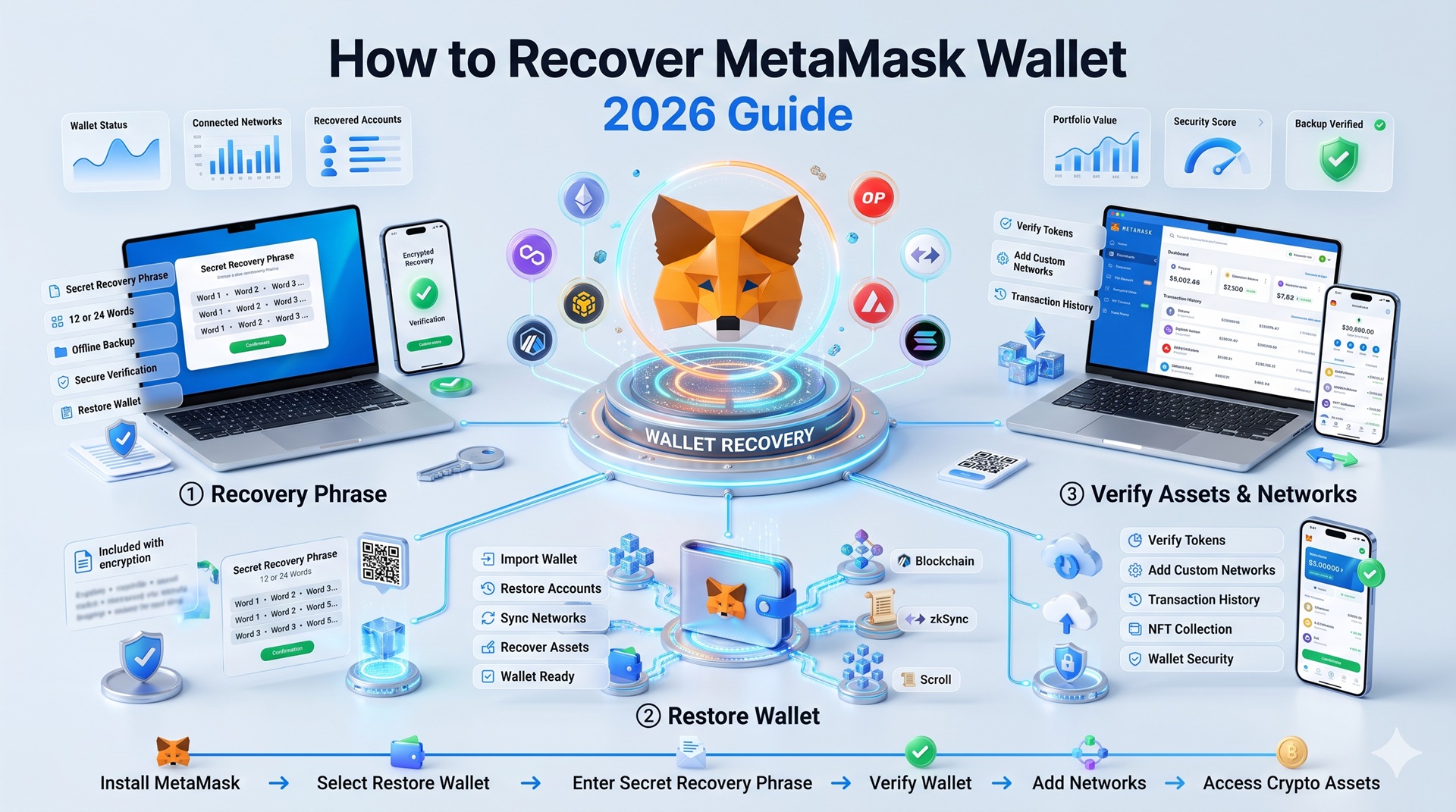
Recovering with Your Secret Recovery Phrase
This is the standard recovery path — works even if the original device is gone or the extension was deleted.
1
Install MetaMask
From the official site, on a new device or fresh install.
2
Select “I already have a wallet”
Choose “Import using Secret Recovery Phrase.”
3
Enter your 12-word phrase
In the correct order, all lowercase, one space between words.
4
Set a new password
Your first account restores automatically.
Imported Accounts Need Manual Re-AddingAccounts added from a private key, JSON file, or hardware wallet are not derived from your SRP — have those private keys ready before you start.
Recovering Your SRP via the Vault Decryptor
Use this if you don’t have your SRP written down, you do know your password, and MetaMask is (or was recently) installed on a desktop browser. This method does not work reliably on Android.
1
Open Developer Tools
Right-click → Inspect → Application tab → Local Storage → the extension entry.
2
Copy the encrypted vault string
Look for the key labeled “data.”
3
Paste into the Vault Decryptor
Enter your MetaMask password and click “Decrypt.”
4
Write down your SRP
Store it securely offline, then use it to restore your wallet.
Recovering on a New Device
Install MetaMask, select “Import using Secret Recovery Phrase,” and follow the standard restore steps. If you originally used Google or Apple login, sign in with the same account plus your password to auto-restore accounts — except hardware wallets, which always need manual reconnection.
What to Check After Recovery
Re-add missing tokens — ERC-20 and NFTs aren’t always detected automatically; add via contract address
Re-add custom networks — Polygon, BSC, Arbitrum, and Avalanche need re-adding via Settings → Networks
Re-import private key accounts — these are never restored automatically by your SRP
Recovery Scams — How to Stay Safe
MetaMask Support Never Asks for Your SRPNot in a support ticket, a Telegram group, a Discord DM, or on any site claiming to be a recovery service. Anyone who asks intends to drain your wallet.
No tool, service, or person can access your funds without your SRP — if a site claims otherwise, it is a scam. Always verify you’re on the official metamask.io domain.
Frequently Asked Questions
Only if MetaMask is still installed on your original device and you know your password — in that case, the Vault Decryptor can extract your SRP from the local encrypted vault.
No. MetaMask is self-custodial — your SRP is generated locally and never stored by MetaMask, so recovery is entirely your responsibility.
Click “Forgot password” on the lock screen, enter your SRP, and create a new password. Your accounts will be restored.
An open-source browser-based tool that decrypts the locally stored encrypted vault using your password to reveal your Secret Recovery Phrase.