How to Import a Seed Phrase into MetaMask Wallet [2026]Β
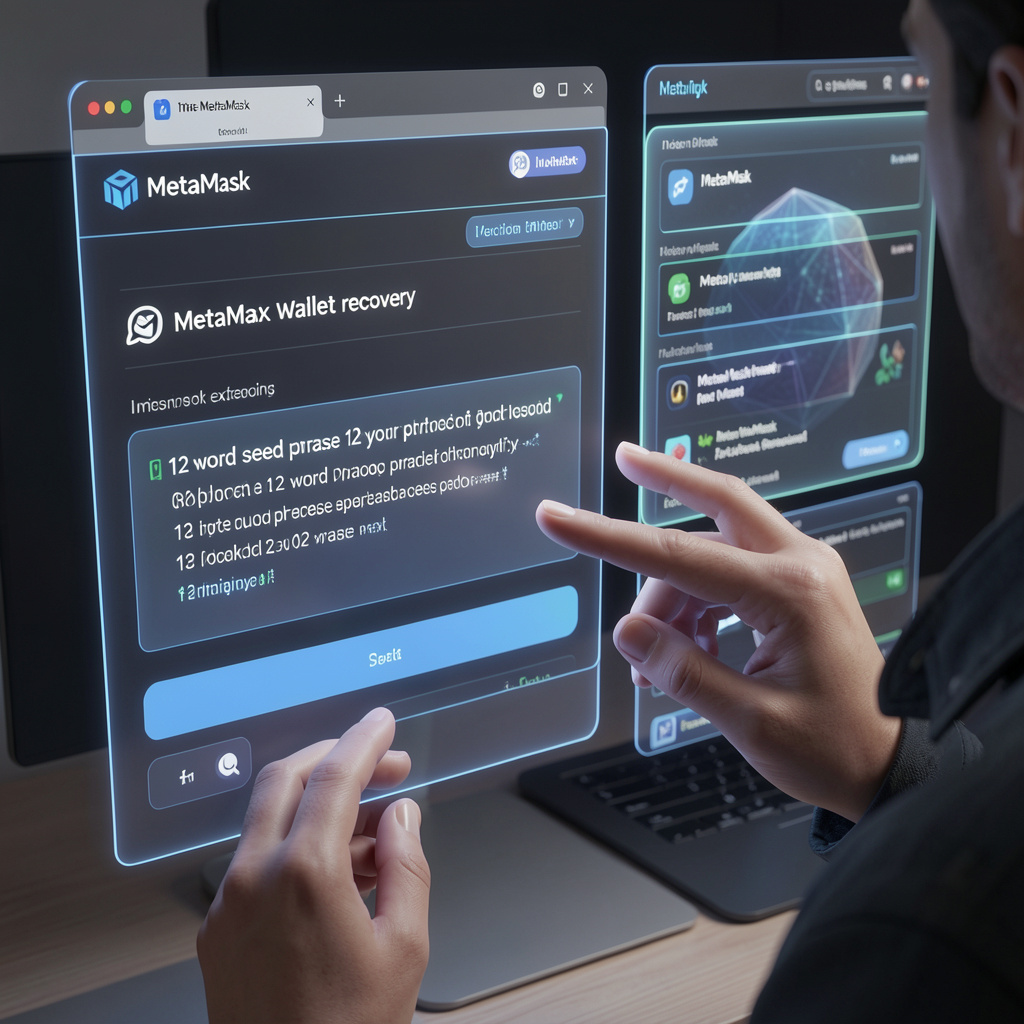
MetaMask Wallet requires your Secret Recovery Phrase (seed phrase) to restore access to your accounts – whether you are switching devices, reinstalling the extension, migrating from another wallet like Trust Wallet, or recovering from a forgotten password.
This guide walks through every import scenario on MetaMask Extension and MetaMask Mobile, and covers how to fix the most common errors that appear after import.
What Is a Seed Phrase (Secret Recovery Phrase) in MetaMask Wallet?
A seed phrase – officially called a Secret Recovery Phrase (SRP) in MetaMask Wallet – is a sequence of 12 or 24 words that acts as the master key to your entire wallet. Every account address, token balance, and transaction history associated with that wallet is mathematically derived from this single phrase. Whoever controls the SRP controls the wallet.
MetaMask Wallet generates your SRP when you first create a new wallet. It is the only way to restore your accounts if you lose access to your device, forget your password, or reinstall the extension. MetaMask Support cannot recover your SRP for you – it is stored locally, never on MetaMask servers.
How the BIP-39 Standard Generates Your MetaMask Secret Recovery Phrase
MetaMask uses BIP-39 (Bitcoin Improvement Proposal 39) – the industry standard for mnemonic seed phrase generation. BIP-39 selects words from a fixed list of 2,048 English words, using high-entropy randomness to produce a phrase that encodes a very large cryptographic number.
That number is then used to deterministically generate your private keys and account addresses. Because BIP-39 is a universal standard, your MetaMask seed phrase is compatible with many other wallets that implement the same specification.
Seed Phrase vs. Private Key – Which One to Import?
| Seed Phrase (SRP) | Private Key | |
| What it restores | Entire wallet – all accounts derived from it | One specific account only |
| Word count | 12 or 24 words | 64-character hex string (0xβ¦) |
| Best used for | Full wallet migration, device change, password reset | Adding a single account from another source |
| After import | All ETH-balance accounts auto-appear | Account appears marked “Imported” |
If you have your SRP, use it. Private key import is only appropriate when you need to add one isolated account to an existing MetaMask wallet.
When Do You Need to Import a Seed Phrase into MetaMask?
The most common scenarios that require a MetaMask seed phrase import are:
- Switching devices – restoring your wallet on a new phone or computer
- Reinstalling MetaMask – after uninstalling the Extension or app
- Migrating from another wallet – bringing a Trust Wallet, imToken, or other EVM-compatible wallet into MetaMask
- Multi-device sync – running the same wallet across multiple browsers or phones simultaneously
- Forgotten unlock password – resetting your MetaMask password using your SRP (the password is device-local; the SRP is universal)
How to Import a Seed Phrase into MetaMask Extension (Step-by-Step)
Importing into a Fresh MetaMask Extension Install
Use this path when MetaMask is newly installed and no wallet exists yet.
- Install MetaMask from the official Chrome, Firefox, Brave, or Edge extension store. Verify the URL is metamask.io before downloading.
- Open the extension and click “I have an existing wallet” on the welcome screen.
- If prompted, choose to connect via Google or Apple – or skip to manual SRP import below.
- Select “Import a wallet” from the Add Wallet options.
- Enter your 12 or 24-word Secret Recovery Phrase in the correct order, all lowercase, with one space between each word. Do not add a trailing space after the final word.
- Set a new unlock password for this device. This password is local to this installation – it can differ from passwords used on other devices.
- Click “Import”. MetaMask will derive your wallet from the SRP. Once complete, your wallet address and ETH balance will appear.
- If you had multiple accounts under the same SRP, only the first account with a non-zero ETH balance is automatically restored. To recover additional accounts, click the account avatar β “Add account or hardware wallet” β “Add a new Ethereum account” and MetaMask will sequentially restore them.
Importing a Seed Phrase into an Existing MetaMask Extension Wallet (Already Set Up)
Use this path when MetaMask already has a wallet loaded and you want to add a second wallet from a different SRP.
- Click the account selector (your account name/avatar) at the top of the MetaMask Extension.
- Select “Add wallet” at the bottom of the account list.
- On the Add Wallet screen, choose “Import a wallet”.
- Enter your 12 or 24-word SRP and click “Continue”.
Important: If MetaMask is connected to a Google or Apple account, any SRP you import this way will be linked to that Google/Apple account and synced across all devices using the same login. If you do not want this, restore the second wallet in a separate browser profile.
How to Import a Seed Phrase into MetaMask Mobile (iOS and Android)
The MetaMask Mobile import flow is nearly identical on iOS and Android.
- Open the MetaMask app. From the wallet view, tap the currently selected account name at the top to open the account selector.
- Tap “Add wallet” at the bottom of the menu.
- Tap “Import a wallet”.
- Enter your 12 or 24-word Secret Recovery Phrase – all lowercase, one space between words.
- Select the accounts you want to import (MetaMask Mobile lets you choose which accounts to restore from the SRP).
- Tap “Continue” to complete the import.
Your imported wallet and its associated accounts will now appear in the account selector alongside any existing wallets.
Note for Google/Apple login users: On MetaMask Mobile, if you are signed in with a Google or Apple account, imported wallets sync automatically to all other devices using the same social login credentials.
Importing a Seed Phrase from Another Wallet into MetaMask – Trust Wallet, imToken, & Other EVM Wallets
MetaMask Wallet accepts any BIP-39 seed phrase, which means 12-word or 24-word phrases from Trust Wallet, imToken, Coinbase Wallet, and most other non-custodial EVM wallets can be imported directly. The import steps are identical to a standard MetaMask seed phrase import – enter the phrase, set a password, complete the import.
For Trust Wallet to MetaMask migration: Trust Wallet seed phrases are typically 12 words and use the same BIP-39 standard. ETH and EVM addresses will usually match exactly after import.
For imToken to MetaMask migration: imToken seed phrases are also BIP-39 compatible. Always verify that the ETH address shown after import matches your original imToken address before proceeding.
Exchanges (Binance, Coinbase, Kraken): Centralised exchange accounts do not have exportable seed phrases or private keys. You cannot import an exchange account into MetaMask using a seed phrase – you must withdraw funds from the exchange to your MetaMask address instead.
Derivation Path (BIP-44) Compatibility – Why Your Addresses May Differ Across Wallets
MetaMask Wallet supports only the BIP-44 derivation path m/44’/60’/0’/0 when importing a seed phrase. This is the default Ethereum derivation path used by the majority of EVM wallets.
If you import a seed phrase from a wallet that used a non-standard derivation path for certain chains, the addresses generated by MetaMask for those chains may differ from what you expected.
For Ledger hardware wallets connected to MetaMask, multiple derivation paths are supported (Legacy/MEW/MyCrypto, Ledger Live, BIP44). For Trezor, only BIP44 is supported. If your tokens appear missing after import from a hardware wallet context, derivation path mismatch is the first thing to investigate.
Import Errors and Fixes – Invalid Seed Phrase, Zero Balance, Wrong Address
No competitor page currently unifies these three error types into a single troubleshooting flow. This section covers each one.
Why MetaMask Shows “Invalid Secret Recovery Phrase” and How to Fix It
MetaMask will reject a seed phrase as invalid when any of the following conditions are true:
- Misspelled word – Every word in a BIP-39 phrase must appear exactly on the BIP-39 English wordlist. Use your browser’s Ctrl+F / Cmd+F to verify each word against the list. Watch for visually similar words (e.g. “access” vs “excess”, “border” vs “borrow”).
- Wrong word order – The phrase encodes a specific sequence. Even one transposed word produces a completely different wallet or an invalid phrase.
- Wrong word count – MetaMask accepts 12 or 24 words only. If your phrase has 13, 18, or any other count, it may be from a wallet using a non-standard implementation.
- Extra spaces or uppercase letters – All words must be lowercase with exactly one space between them and no trailing space.
- Non-BIP-39 phrase – Some older Brave browser wallets and certain hardware wallet setups used 24-word phrases from a different standard (SLIP-39 / Shamir Secret Shares). MetaMask does not support SLIP-39 import.
Fix: Re-enter the phrase manually rather than pasting to eliminate clipboard formatting issues. Check each word against the BIP-39 wordlist. If one word fails to match, look for the closest spelling on the list.
Balance Shows 0 After Seed Phrase Import – Causes and Solutions
A zero balance after a successful MetaMask seed phrase import does not mean funds are lost. The most common causes are:
- Wrong network selected – Your assets may be on BSC, Polygon, or another EVM chain, while MetaMask defaults to Ethereum Mainnet. Switch networks in the MetaMask network selector to find your balance.
- Custom token not added – ERC-20 and other non-native tokens do not appear automatically. Click “Import tokens” in MetaMask and enter the token’s contract address to add it.
- Network sync delay – MetaMask may take a few minutes to pull on-chain data after import. Wait and refresh.
- Only Account 1 restored – MetaMask auto-restores accounts in ascending order and stops at the first account with a zero ETH balance. If your funds are in Account 2 or later, manually add accounts via the account selector until you locate the correct address.
- Address mismatch – Confirm the wallet address shown after import matches the address you used before. If it does not match, the SRP entered may be for a different wallet.
Seed Phrase Restored a Different Wallet Address – What to Do
If the address that appears after import does not match your expected address, the most likely causes are:
- You entered the SRP for a different wallet – Double-check which wallet the phrase belongs to. If you manage multiple wallets, each has a unique SRP.
- Derivation path mismatch – If migrating from a wallet that used a non-BIP-44 path for a specific chain, MetaMask will generate a different address for that chain. This is expected behavior, not data loss. Your funds remain safe at the original address, accessible through the original wallet.
- Account index offset – If your funds were in Account 3 or later under the same SRP, MetaMask may not have auto-generated that account yet. Add more accounts manually from the account selector until you find the correct address.
MetaMask Seed Phrase Import Security – What MetaMask Never Asks and How to Avoid Phishing
Your Secret Recovery Phrase grants complete access to every account in your MetaMask Wallet. A single exposure is irreversible – anyone with your SRP can drain all associated accounts from any device, at any time.
MetaMask will never ask for your SRP in a support chat, a Discord message, a pop-up on a third-party website, or via email. Any request for your seed phrase from any source claiming to be MetaMask is a phishing attempt. Report it immediately through official MetaMask support channels.
Key security rules for MetaMask seed phrase import:
- Only enter your SRP inside the official MetaMask Extension or mobile app interface – never on a web page, even one that looks like MetaMask.
- Import only on trusted, malware-free devices. Every import stores wallet data locally on that device.
- After using a private key (not SRP), clear your clipboard immediately.
- Store your SRP in a physical, offline location – handwritten, not photographed or cloud-stored.
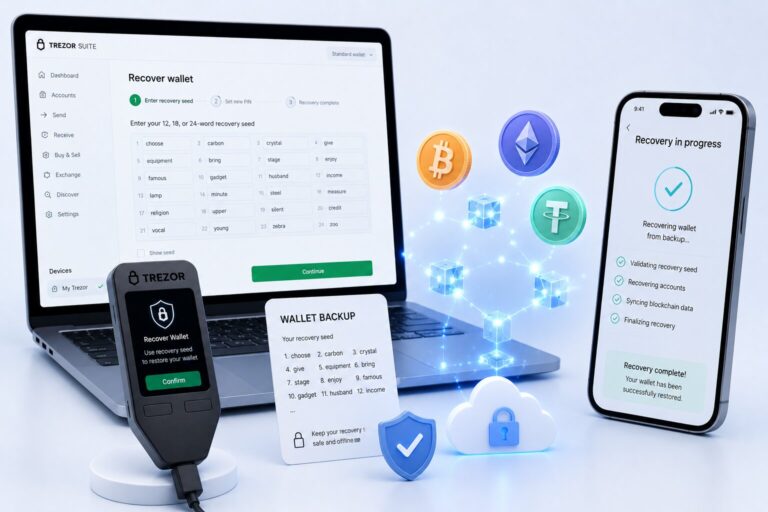
- If your wallet holds significant assets, consider pairing MetaMask with a Ledger or Trezor hardware wallet to keep private keys fully offline.
How to Verify Your MetaMask Extension Is Genuine Before Importing
Before entering any seed phrase, confirm you are using a legitimate MetaMask installation:
- Navigate directly to metamask.io and verify the SSL padlock in your browser address bar.
- Install only from your browser’s official extension store (Chrome Web Store, Firefox Add-ons, etc.) β never from a third-party link.
- Check that the extension ID in your browser matches the official MetaMask extension ID published on metamask.io.
- Avoid importing your SRP on public computers, shared devices, or browsers you do not control.
FAQ – Importing a Seed Phrase into MetaMask
How do I import a seed phrase into MetaMask?
On MetaMask Extension, click the account selector β “Add wallet” β “Import a wallet“, then enter your 12 or 24-word Secret Recovery Phrase in lowercase with one space between each word and click “Continue”. On MetaMask Mobile, tap your account name β “Add wallet” β “Import a wallet” β enter your SRP and tap “Continue”.
Can I import a 24-word seed phrase into MetaMask?
Yes. MetaMask Wallet supports both 12-word and 24-word BIP-39 seed phrases. Enter all 24 words in the correct order on the import screen – the process is identical to a 12-word import.
What happens if I import a seed phrase into an existing MetaMask wallet?
Importing a new SRP into an existing MetaMask Extension installation via the standard “Add wallet” flow adds the imported wallet as a second wallet alongside your original – it does not overwrite it. However, if you use the full wallet reset method to import an SRP into an Extension profile, the existing SRP vault data in that browser profile is replaced. Manage multiple SRPs using separate browser profiles to keep them fully isolated.
Will importing my seed phrase on a new device affect my old wallet?
No. Importing your seed phrase on a new device does not remove, alter, or lock your wallet on the original device. Both devices access the same on-chain accounts simultaneously. Blockchain data is not device-local – your assets remain at their addresses regardless of how many devices use the same SRP.
What is the difference between a seed phrase and a private key in MetaMask?
A Secret Recovery Phrase (seed phrase) is the root key for your entire MetaMask wallet – it generates all accounts and their private keys. A private key controls one specific account only. If you restore MetaMask with an SRP, all accounts derived from it are restored. If you import only a private key, only that one account is added, and it will not be automatically restored in future SRP-based recoveries – you must manually re-import it each time.
I’ve lost my Secret Recovery Phrase but I have my password. How do I import?
If you can still unlock MetaMask on your current device with your password, your SRP is still accessible. Go to Settings β Security & Privacy β Reveal Secret Recovery Phrase, enter your password, and copy the phrase. Back it up immediately in a secure physical location. If you cannot unlock MetaMask on any device and do not have the SRP, account recovery is not possible – MetaMask Wallet is self-custodial and does not store SRPs on its servers.