How to Add a Custom Network to Trust Wallet: Complete Guide
How to Add a Custom Network to Trust Wallet: Complete Guide
CrisCoin 16 min readTrust Wallet
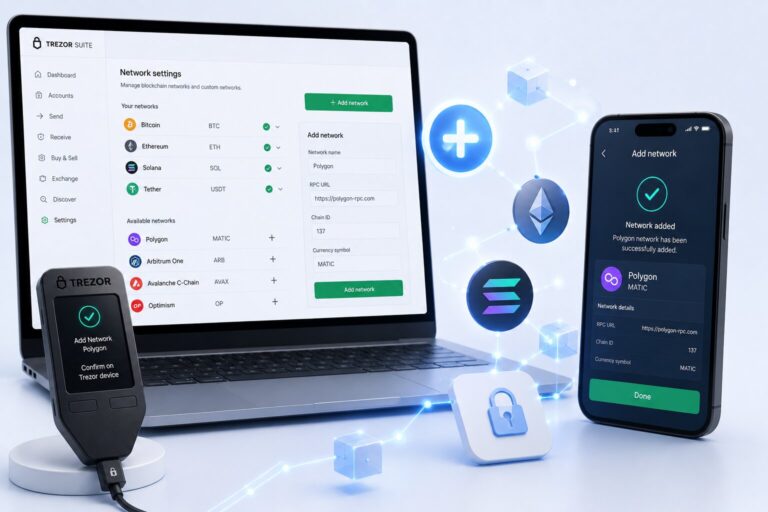
Trust Wallet adds a Custom Network by accepting five fields — Network Name, Symbol, RPC URL, Chain ID, and Block Explorer URL — through its mobile app or Browser Extension.
Only EVM-compatible networks can be added manually. Trust Wallet already supports 100+ blockchains natively, so a custom network is only needed for emerging or niche EVM chains.
Field
Role
Required
Network Name
Human-readable label for the chain
Yes
Network Symbol
Native currency ticker (e.g. ETH, MATIC)
Yes
RPC URL
Node address Trust Wallet uses to communicate with the chain
Yes
Chain ID
Unique numeric identifier for the blockchain
Yes
Block Explorer URL
Link to an on-chain transaction viewer
Optional
Search FirstBefore adding a Custom Network, check Trust Wallet’s built-in network list — most major chains are already natively supported.
What Is a Custom Network and Which Networks Can Be Added?
A Custom Network is a blockchain not pre-configured in Trust Wallet. Adding one teaches the wallet how to communicate with that chain’s nodes, enabling token access, dApp interaction, and transaction signing.
Key Facts
A custom network extends access to emerging EVM chains and dApps
EVM architecture lets a single wallet address operate across all added chains
An unverified chain shows no price information or token icon after addition
Why Does Trust Wallet Only Support EVM-Compatible Custom Networks?
Trust Wallet supports EVM-compatible Custom Networks because EVM chains share Ethereum’s transaction signing standard — the same private key and address format work across all of them. Non-EVM chains like Bitcoin, Solana, and Cosmos require separate architecture and are added only through official Trust Wallet integration.
Network Type
Manual Addition
Example Chains
EVM-compatible
Yes — via RPC URL + Chain ID
Polygon, Avalanche, Base, Arbitrum, Fantom
Non-EVM
No — official integration only
Bitcoin, Solana, Cosmos, Tron
A Chain ID uniquely identifies each EVM chain and prevents cross-chain transaction errors.
Which Networks Does Trust Wallet Support Natively vs Require Manual Addition?
Trust Wallet natively supports 100+ blockchains — including Ethereum, BNB Chain, Solana, Polygon, Avalanche, Arbitrum, Base, Optimism, and Tron — without any manual configuration. Newer or less popular EVM chains require manual Custom Network addition.
Support Type
Networks Included
User Action Required
Native (100+ chains)
ETH, BNB, SOL, MATIC, AVAX, ARB, BASE, OP, TRX
None — pre-configured
Manual Custom Network
New EVM chains, testnets, sidechains, lesser-known L2s
RPC URL + Chain ID entry
What Are the 5 Required Fields to Add a Custom Network?
Five fields define a Custom Network in Trust Wallet. An error in any one field causes the network to malfunction or transactions to fail.
What Is an RPC URL and Where Do You Find a Verified One?
An RPC URL is the address of a blockchain node that Trust Wallet uses to read balances, broadcast transactions, and interact with smart contracts. A wrong or malicious RPC URL causes incorrect balance display or exposes transaction data to third parties.
RPC URL Source
Trust Level
Use Case
Chainlist.org (green status)
High — community verified
Best for most users
Official project documentation
High — primary source
Most reliable
Infura / Alchemy / QuickNode
High — institutional providers
High-volume users
Unknown third-party sites
Low — unverified
Avoid entirely
Social media / Telegram links
Very low — malicious RPC risk
Never use
A green status on Chainlist confirms the node is live and responding correctly; a red or grey status means it’s offline and should not be used.
What Is Chain ID and What Happens If You Enter the Wrong One?
Chain ID is a unique numeric identifier assigned to each EVM blockchain. Trust Wallet uses it to route transactions to the correct network — an incorrect Chain ID causes transactions to broadcast on the wrong chain, resulting in failed transactions or permanent fund loss.
Chain
Chain ID
Native Currency
Ethereum Mainnet
1
ETH
BNB Smart Chain
56
BNB
Polygon Mainnet
137
MATIC/POL
Avalanche C-Chain
43114
AVAX
Arbitrum One
42161
ETH
Base
8453
ETH
Optimism
10
ETH
Fantom
250
FTM
Match It ExactlyA wrong Chain ID sends transactions to unintended blockchains. Always cross-check it against Chainlist or official documentation.
Is Block Explorer URL Required When Adding a Custom Network?
Block Explorer URL is optional. Adding it enables in-app transaction tracking — tapping a transaction opens the chain’s explorer directly. Without it, you must manually visit the explorer to check transaction status.
Block Explorer
Chain
URL
Etherscan
Ethereum
etherscan.io
BscScan
BNB Chain
bscscan.com
Polygonscan
Polygon
polygonscan.com
Snowtrace
Avalanche
snowtrace.io
Arbiscan
Arbitrum
arbiscan.io
Basescan
Base
basescan.org
A missing Block Explorer URL does not prevent the custom network from functioning.
How to Add a Custom Network on Trust Wallet Mobile App
Trust Wallet mobile adds a Custom Network through the manage assets icon, using the Network tab — separate from the Token tab.
How Do You Find a Verified RPC URL on Chainlist First?
1
Go to chainlist.org
Open the site in your browser.
2
Search for the network name
e.g. “Polygon”, “Base”, “Avalanche”.
3
Expand the network
View the available RPC URLs.
4
Identify a green-status URL
Green means the node is live and responding.
5
Copy the RPC URL
Also note the Chain ID and Block Explorer URL.
Chainlist Status
Meaning
Action
🟢 Green
Node live and responding
Safe to use
🔴 Red
Node offline or slow
Do not use
⚪ Grey
Status unknown
Avoid — use green only
How Do You Fill In Network Fields Correctly in the Mobile App?
1
Tap the manage assets icon
Top right of the main screen.
2
Tap the ‘+’ button
Start adding a new entry.
3
Switch to the Network tab
Top right of the screen — not the Token tab.
4
Fill in all 5 fields
Name, Symbol, RPC URL, Chain ID, and optional Block Explorer URL.
5
Tap Save
The Custom Network appears in your network list.
No Icon Is NormalIf the chain isn’t yet verified in Trust Wallet’s assets repository, the token price and icon won’t display — the network still functions correctly for transactions.
Example — Adding Polygon Mainnet
Field
Value
Network Name
Polygon Mainnet
Network Symbol
MATIC
RPC URL
https://polygon-rpc.com
Chain ID
137
Block Explorer URL
https://polygonscan.com
How to Add a Custom Network on Trust Wallet Browser Extension
The Trust Wallet Browser Extension adds Custom Networks through the Settings menu — a different path from the mobile app, but with identical required fields. It’s available on Chrome, Brave, Edge, and Opera.
Step
Mobile App
Browser Extension
Open form
Manage assets icon → ‘+’ → Network tab
Settings icon → Network → Add Custom Network
Fields required
Name, Symbol, RPC URL, Chain ID, Explorer
Name, Symbol, RPC URL, Chain ID, Explorer
Save action
Tap Save
Tap Add / Save
Available on
iOS and Android
Chrome, Brave, Edge, Opera
1
Click the extension icon
Find it in your browser toolbar.
2
Enter your password
Unlock the wallet.
3
Click Settings
Bottom right of the extension.
4
Click Network, then Add Custom Network
Open the network form.
5
Fill in all 5 fields and save
Then select the new network from the dropdown to activate it.
The Browser Extension and mobile app share wallet access when the same recovery phrase is imported, but Custom Networks added on one platform must be re-added manually on the other.
Is It Safe to Add Custom Networks to Trust Wallet?
Adding a Custom Network is safe when the RPC URL comes from a verified source. A malicious RPC cannot steal funds or access private keys — but it can read transaction data and display false balances.
What Can a Malicious RPC Do to Your Trust Wallet — and What Can It Not?
A malicious RPC monitors transaction requests sent through it, seeing destination addresses, amounts, and token types before they reach the blockchain. It cannot initiate transactions, move funds, or access the recovery phrase.
Malicious RPC Capability
Can Do
Cannot Do
Read transaction data
Yes
—
Display false balance
Yes
—
Front-run transactions
Yes, on some networks
—
Access private keys
—
No
Sign transactions
—
No
Move funds without approval
—
No
Access recovery phrase
—
No
Your recovery phrase remains protected on your device regardless of which RPC URL you use.
How Do You Verify an RPC URL Is Safe Before Adding It?
Verify RPC URLs using three sources in priority order: official project documentation first, Chainlist green-status confirmation second, and institutional providers (Infura, Alchemy, QuickNode) third. Never use URLs shared via Telegram, Discord DMs, or unknown websites.
Verification Step
Action
Risk Level if Skipped
Check official project docs
Search “[network name] official RPC”
High
Confirm green status on Chainlist
Visit chainlist.org → search network
Medium
Cross-reference Chain ID
Verify it matches official docs
High
Test with a small transaction
Send a minimal amount first
Medium
Why Is My Custom Network Not Showing in Trust Wallet?
A Custom Network fails to appear or function due to four common causes: an incorrect RPC URL, wrong Chain ID, an offline RPC node, or an app version mismatch.
Cause
Symptom
Fix
Incorrect RPC URL
Network added but transactions fail
Re-enter the URL from a Chainlist green-status node
Wrong Chain ID
Transactions route to the wrong network
Verify Chain ID on Chainlist or official docs
RPC node offline
Network added but balance won’t load
Switch to an alternate green-status RPC URL
Outdated app version
Form fields not saving correctly
Update Trust Wallet to the latest version
Non-EVM network attempted
Network tab unavailable or form rejects entry
Only EVM-compatible chains can be added manually
No Price or Icon Is Just CosmeticIt means the chain isn’t yet verified in Trust Wallet’s assets repository — the network still functions for transactions, token display, and dApp interaction.
Frequently Asked Questions
Open Trust Wallet, tap the manage assets icon, tap ‘+’, switch to the Network tab, enter the Network Name, Symbol, RPC URL, Chain ID, and optional Block Explorer URL, then tap Save. Use Chainlist.org to find verified green-status RPC URLs.
Find verified RPC URLs on Chainlist.org by searching the network name and copying a green-status URL, or check the official project documentation. Never use RPC URLs from Telegram, Discord DMs, or unknown websites.
Chain ID is a unique numeric identifier for each EVM blockchain that routes transactions to the correct network. Common examples: Ethereum = 1, BNB Chain = 56, Polygon = 137, Avalanche = 43114, Base = 8453.
No. Trust Wallet only supports EVM-compatible Custom Networks for manual addition. Non-EVM chains like Bitcoin, Solana, Cosmos, and Tron are supported only through official native integration.
Yes, when using verified RPC URLs from Chainlist or official project documentation. A malicious RPC cannot access private keys or move funds — it can only read transaction data and display false balances.
It’s usually an incorrect RPC URL, wrong Chain ID, an offline RPC node, or an outdated app version. Re-enter the fields using a verified green-status RPC URL and update the app if needed.