How to Recover MetaMask Wallet
Recovering a MetaMask Wallet means restoring access using a seed phrase or private key. MetaMask Wallet verifies identity through cryptographic keys, not centralized storage. What MetaMask wallet recovery actually means
MetaMask recovery means regaining access using Secret Recovery Phrase (SRP), password, or vault data. It operates as a non-custodial wallet, so users control keys and funds. No third party stores credentials.
Why MetaMask cannot recover your wallet for you
MetaMask cannot recover your wallet because it stores encrypted data locally.
- It stores SRP in a local vault
- Password encrypts the vault
- Servers store no credentials
This architecture removes backdoor access.
The Secret Recovery Phrase, password, and private key – how they differ
| Credential | Function | Scope | Recovery Role |
| SRP | Generates all accounts | Full wallet | Primary recovery |
| Password | Encrypts vault | Local device | Secondary access |
| Private Key | Controls one account | Single account | Import-only |
SRP follows BIP-39 standard
Private keys do not derive from SRP for imported accounts
Understanding which credential does what is essential before you attempt any recovery.
Secret Recovery Phrase (SRP): A unique 12-word phrase generated when you first set up MetaMask. It follows the BIP-39 standard – the same word list used by Trust Wallet, Exodus, Ledger, and other wallets. Every account in your wallet is mathematically derived from this phrase. Your SRP is the master key: anyone who has it controls your entire wallet.
Password: Encrypts the SRP on your local device. It protects access to MetaMask on that specific browser or phone – it is not a universal recovery method. Lose your SRP but keep your password, and recovery is possible but harder. Lose both, and recovery is not possible.
Private key: Controls a single account only. Imported accounts – accounts added from external wallets or hardware devices – are not derived from your SRP. They must be re-imported separately using their individual private keys.
Which MetaMask wallet recovery path applies to you?
Use the table below to find your exact situation and jump straight to the right section.
| What you still have | Recovery method | Difficulty |
| Secret Recovery Phrase | Restore with SRP | Easy |
| SRP + forgot password | Reset password with SRP | Easy |
| Password only – MetaMask still installed | Vault Decryptor | Moderate (~30 min) |
| Google or Apple login + password | Social login recovery | Easy |
| Deleted extension – had SRP backed up | Reinstall + restore with SRP | Easy |
| Deleted extension – no SRP, no password | No standard recovery path | β |
| Password only – MetaMask uninstalled | Vault file backup (if system backup exists) | Hard |
| Neither SRP nor password | Not recoverable | β |
Recovery success depends on available credentials
Missing both SRP and password prevents recovery
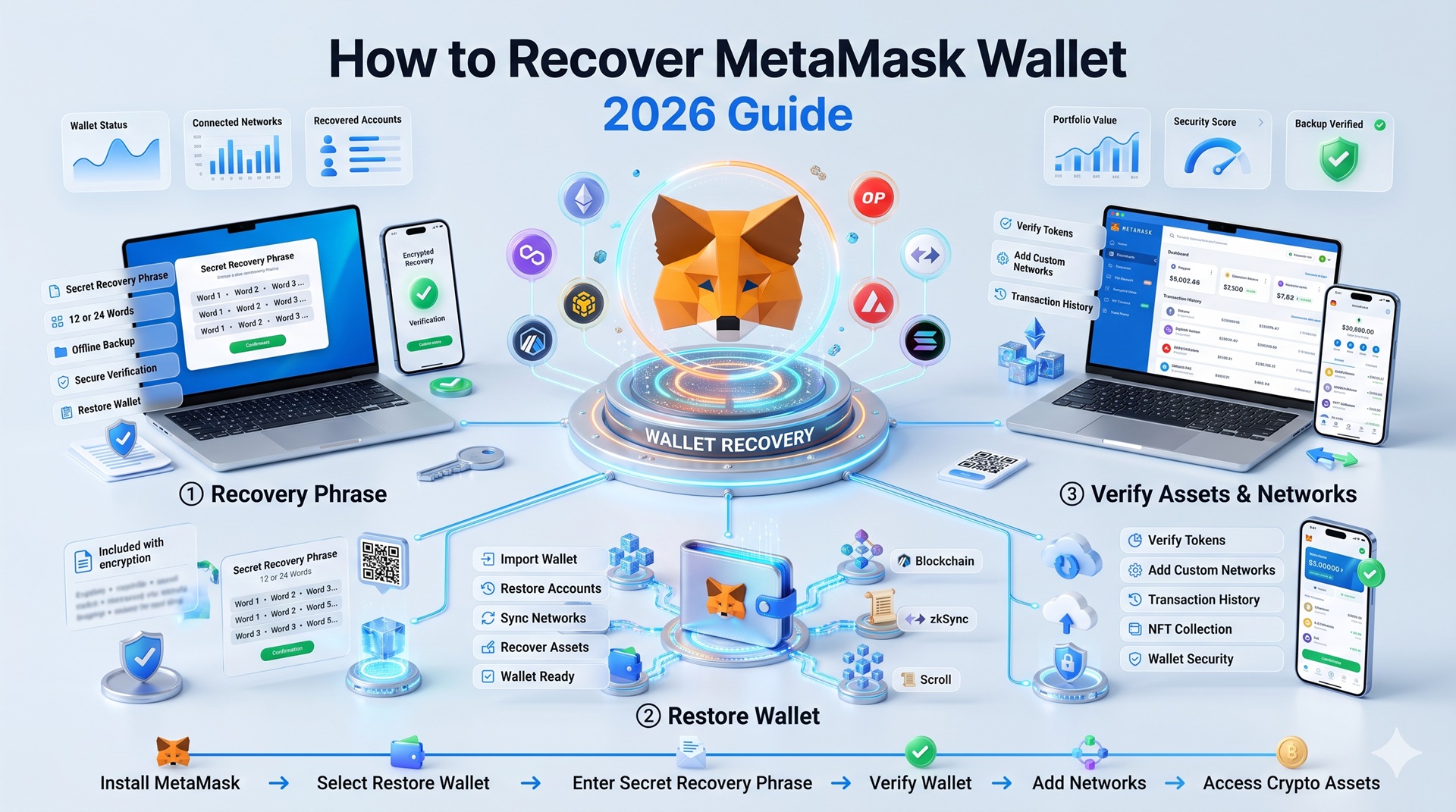
How to Recover MetaMask Wallet using your Secret Recovery Phrase
This is the standard recovery path. If you have your 12-word Secret Recovery Phrase, you can restore your wallet on any device – even if the original device is gone, the extension was deleted, or you simply forgot your password.
Step-by-step: new installation (Extension and Mobile)
On a browser extension (Chrome, Brave, Edge, Firefox):
- Install MetaMask from the official site. [external link: metamask.io]
- On the welcome screen, select “I already have a wallet.”
- Choose “Import using Secret Recovery Phrase.”
- Enter all 12 words in the correct order β all lowercase, one space between each word, no trailing space.
- Set a new password and confirm it.
- Your first account will be restored automatically.
On MetaMask Mobile (iOS or Android):
- Install the MetaMask app from the App Store or Google Play.
- Tap “Import using Secret Recovery Phrase.”
- Enter your 12-word phrase in the correct order.
- Set a new password. You can also enable Face ID or fingerprint unlock at this stage.
Step-by-step: existing installation (reset first, then restore)
If MetaMask is already installed but you cannot log in, you must reset the wallet before you can import your SRP:
- On the MetaMask lock screen, tap or click “Forgot password.”
- You will be prompted to enter your Secret Recovery Phrase to set a new password.
- Enter your SRP, create a new password, and confirm.
Alternatively, for the full wallet reset path: go to Settings β Advanced β Reset Wallet. This wipes all local wallet data from that MetaMask install. After the reset, follow the new installation steps above to restore using your SRP.
What happens to imported accounts and hardware wallets?
Restoring from your SRP automatically re-adds accounts derived from that phrase β but only if they have a non-zero ETH balance on Ethereum mainnet. MetaMask checks accounts in ascending order and stops when it hits an account with zero ETH. Accounts beyond that point will not be added automatically but can be re-added manually by creating new accounts until you reach the address you need.
Imported accounts – those added from a private key, a JSON file, or a hardware wallet like Ledger or Trezor – are not derived from your SRP. They must always be re-added manually. Have your private keys ready before you start the restore.
How to recover your MetaMask Secret Recovery Phrase using the Vault Decryptor
Use this method if: you do not have your SRP written down, you do know your password, and MetaMask is (or was recently) installed on a desktop browser. This method does not work on Android. The iOS method has been subject to changes – follow the automated recovery sequence built into MetaMask v6.3.0 or later.
What is the MetaMask Vault Decryptor?
The MetaMask Vault Decryptor is an open-source tool written by MetaMask co-founder Dan Finlay. It decrypts the encrypted vault file stored locally by your browser extension to reveal your Secret Recovery Phrase. The tool runs entirely in your browser and can be used offline. [external link: MetaMask Vault Decryptor on GitHub]

Step-by-step: Chrome, Brave, and Edge
- Open your browser and navigate to the MetaMask extension.
- Open Developer Tools (right-click β Inspect, or press F12).
- Go to the Application tab β Local Storage β the extension entry.
- Look for the key labeled data β this contains your encrypted vault data.
- Copy the full vault string.
- Go to the Vault Decryptor page and paste the vault data. [external nofollow link: metamask.github.io/vault-decryptor]
- Enter the password you set for your MetaMask extension.
- Click “Decrypt.” If successful, your 12-word Secret Recovery Phrase will appear.
- Write it down immediately and store it in a secure, offline location.
- Use the SRP to restore your wallet following the steps in the section above.
Set aside approximately 30 minutes for this process. If you use multiple Chrome profiles, each profile has its own vault file – check each one until you find the correct address.
Step-by-step: Firefox
Firefox stores vault data differently from Chrome-based browsers, and Firefox’s data encoding changes have made this process less reliable. If MetaMask is open in Firefox, try: navigate to about:debugging β This Firefox β MetaMask β Inspect. From the console, enter the relevant storage query to locate the vault data. Follow the same decryption steps using the Vault Decryptor tool. If this does not work, contact MetaMask Support directly. [external link: MetaMask Support]
Vault Decryptor on mobile (iOS and Android)
Vault recovery via manual extraction is not currently available on Android. On iOS, MetaMask v6.3.0 and later includes an automated vault recovery sequence that triggers when the app detects a problem loading the vault. This process cannot be initiated manually. If you are on iOS and the automated sequence does not activate, contact MetaMask Support for guidance.
How do I recover MetaMask on a new device?
Recovering your wallet on a new device is straightforward β as long as you have your Secret Recovery Phrase or your Google/Apple login credentials.
Using SRP on a fresh install
Install MetaMask on the new device, select “Import using Secret Recovery Phrase,” and follow the steps in the restore section above. Your on-chain transaction history is stored on the Ethereum blockchain, not on your device, so it will all be visible in any block explorer regardless of which device you restore on.
Using Google or Apple social login on a new device
If you originally set up MetaMask using your Google or Apple account, you do not need your Secret Recovery Phrase to access your wallet on a new device. Install MetaMask, choose “I already have a wallet,” and sign in with the same Google or Apple account plus the password you set. It will automatically restore all accounts created under that instance, including imported accounts β with the exception of hardware wallets, which must always be re-added manually.
What to do after recovering your MetaMask wallet
Most recovery guides end at “your wallet is restored” β but restored does not always mean fully functional. Here is what to check after recovery.
Re-adding missing tokens (ERC-20, ERC-721)
Restoring from your SRP re-creates your accounts and their ETH balances, but custom tokens β ERC-20 tokens and ERC-721 NFTs – are not always detected automatically. If you do not see your tokens, you need to re-add them manually using the contract address for each token. You can find contract addresses on a block explorer like Etherscan by looking up your wallet address.
Re-adding custom networks (Polygon, Binance Smart Chain, Arbitrum, Avalanche)
MetaMask defaults to Ethereum mainnet after a restore. Custom networks you had configured – including Polygon, Binance Smart Chain, Arbitrum, and Avalanche – will need to be re-added via Settings β Networks β Add Network.
Re-importing accounts from private keys or hardware wallets
As noted above, imported accounts derived from private keys or hardware wallets like Ledger and Trezor are not restored by your SRP. Go to your account list, select “Import account,” and re-enter each private key. For hardware wallets, reconnect the device and follow the hardware wallet connection flow in MetaMask.
MetaMask wallet recovery scams – how to stay safe
Wallet recovery is one of the highest-risk moments for a regular user. Scammers specifically target people who are already locked out and searching for help.
MetaMask support will never ask for your SRP
MetaMask representatives will never ask for your Secret Recovery Phrase β not in a support ticket, not in a Telegram group, not in a Discord DM, and not on any website claiming to be a recovery service. Anyone who asks for your SRP intends to drain your wallet. If anyone asks for it, report them via MetaMask’s official support channels immediately and do not provide it. [external link: MetaMask Support portal]
How to identify fake MetaMask recovery sites
Several third-party services claim they can recover a wallet for a fee without your SRP. MetaMask is a non-custodial wallet β the SRP is the cryptographic key from which all accounts are derived. No tool, service, or person can access your funds without it. If a site claims otherwise, it is a scam. Always verify that you are on the official MetaMask domain before entering any credentials. [external link: metamask.io]
FAQ – questions from People Also Ask
Can I recover MetaMask without a seed phrase?
Recovery without a seed phrase is possible only under specific conditions: MetaMask must still be installed on your original device, and you must know your wallet password. In that case, the Vault Decryptor can extract your Secret Recovery Phrase from the local encrypted vault. If MetaMask has been uninstalled and no system backup exists, recovery is not possible without the SRP – the encrypted vault data is deleted when the extension is removed.
What happens if I lose my MetaMask Secret Recovery Phrase?
Losing your Secret Recovery Phrase means losing the master key to your wallet. If MetaMask is still installed and you know your password, use the Vault Decryptor to retrieve it. If MetaMask is uninstalled and no vault backup exists, and you cannot remember your password to attempt brute-force via btcrecover, the funds in your non-imported accounts are permanently inaccessible. MetaMask cannot assist with SRP retrieval β the SRP is never stored on MetaMask servers.
Can MetaMask recover my wallet for me?
No. MetaMask is a self-custodial wallet, meaning your Secret Recovery Phrase is generated locally and never transmitted to or stored by MetaMask. MetaMask has no access to your SRP, your password, or your funds. Recovery is entirely your responsibility. This is by design – it also means no third party can access your wallet without your SRP.
How do I recover my MetaMask wallet if I forgot my password?
If you forgot your MetaMask password but have your Secret Recovery Phrase, password recovery is simple: click “Forgot password” on the lock screen, enter your SRP, and create a new password. Your accounts will be restored. If you do not have your SRP but MetaMask is still installed, try the Vault Decryptor method – your password is required to decrypt the vault, so first try every password variation you might have used. The btcrecover tool can automate password variation attempts if you have a partial memory of what it might have been.
What is the MetaMask Vault Decryptor?
The MetaMask Vault Decryptor is an open-source browser-based tool that decrypts the encrypted vault file MetaMask stores locally on your device. When you know your password but have lost your Secret Recovery Phrase, the Vault Decryptor uses your password to decrypt the vault and reveal the SRP stored inside it. The tool was written by MetaMask co-founder Dan Finlay and runs entirely in your browser – it can also be used completely offline by saving the page locally. It works on Chrome, Brave, Edge, and Firefox desktop extensions. Mobile vault extraction is handled differently and is not manually initiated on current iOS and Android versions.