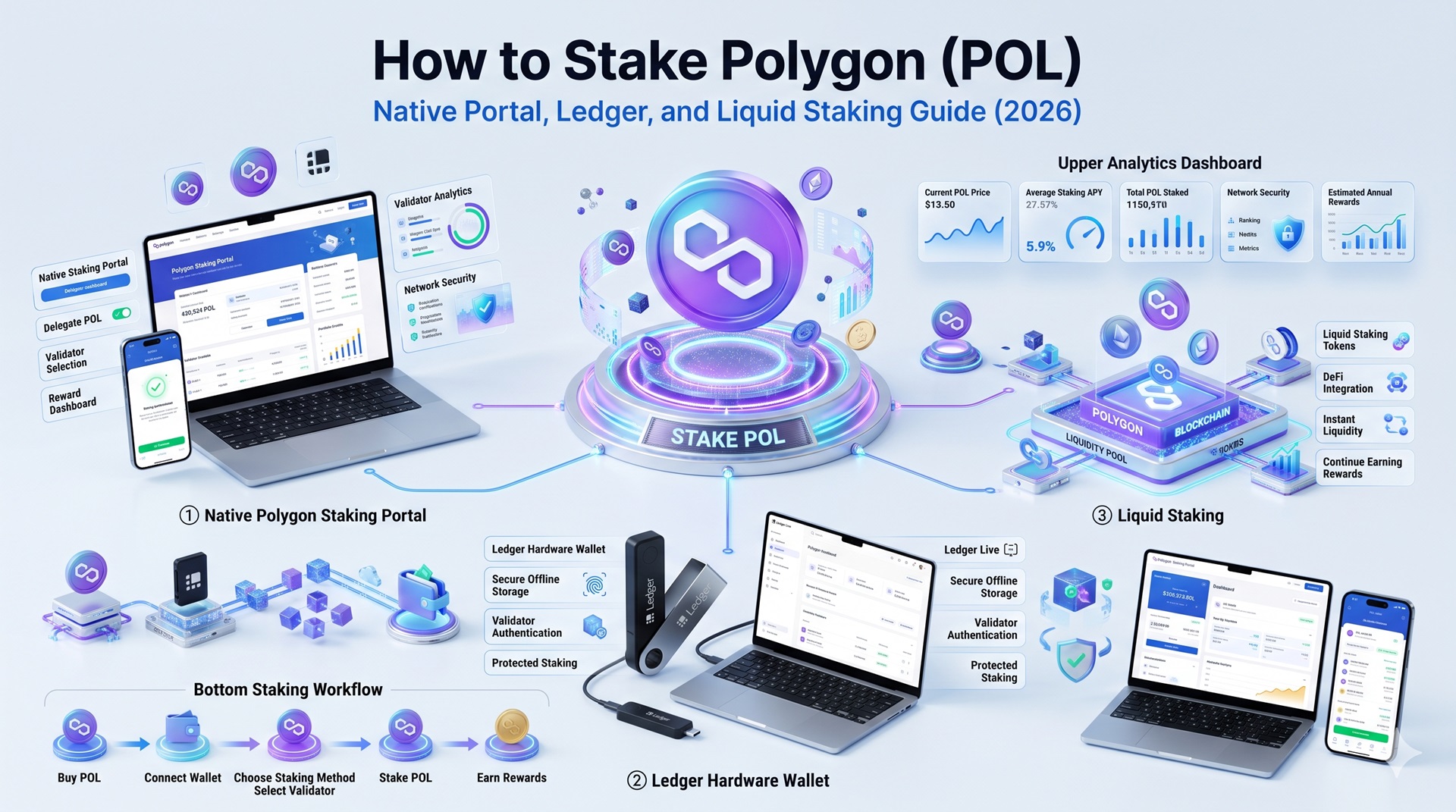
How to Stake Polygon (POL) in 2026: Complete Guide | CryptoLurk
How to Stake Polygon (POL) in 2026: Complete Guide
CrisCoin 13 min readPolygon
Staking Polygon (POL) requires one critical piece of context before you start: all native Polygon staking transactions happen on Ethereum mainnet, not the Polygon chain.
Your POL must be in ERC-20 form in an Ethereum wallet, and you pay ETH gas fees — not POL — for every delegation, reward claim, and unbonding transaction. This guide walks through the native Polygon Staking Portal, Ledger hardware wallet staking, liquid staking with Stader Labs, and staking through exchanges.
What You Need Before You Start Staking Polygon
Before visiting the Polygon Staking Portal, confirm the following:
Requirements Checklist
POL in ERC-20 form on Ethereum mainnet — not on the Polygon PoS chain. Bridge first at portal.polygon.technology if needed
ETH for gas — have at least 0.1 ETH in the same wallet for every staking transaction
A compatible wallet — MetaMask, Coinbase Wallet, Rabby Wallet, or any WalletConnect-enabled wallet
Bridging Note: If you need to bridge POL from Polygon PoS to Ethereum, expect the bridge transaction itself to take 20–40 minutes and cost ETH gas.
How to Stake Polygon (POL) on the Native Staking Portal
1
Switch MetaMask to Ethereum Mainnet
Open MetaMask and confirm the selected network is Ethereum Mainnet, not Polygon PoS. The Polygon Staking Portal’s smart contracts are deployed on Ethereum. Click the network dropdown and select “Ethereum Mainnet” if needed.
2
Connect Your Wallet to the Portal
Navigate to staking.polygon.technology, click “Connect Wallet,” select MetaMask or WalletConnect, and approve the connection. Your wallet address and POL balance appear on the dashboard.
3
Browse Validators and Choose One
Click “Become a Delegator” to view Polygon’s 105-validator set. Evaluate checkpoint signing rate (aim for 99–100%), commission rate (typically 0–10%), and total stake for decentralization.
4
Complete Two Required Transactions
Your first-ever delegation requires a spend approval transaction, then a delegation transaction. Wait for the first to confirm (15–60 seconds) before the second becomes available. Budget $10–$25 total in gas.
5
Wait for 12 Checkpoints
Your delegation won’t immediately appear in the dashboard. Checkpoints are submitted roughly every 30–60 minutes, so 12 checkpoints take approximately 2–12 hours to reflect your position.
6
Claim Your Rewards
Rewards accumulate automatically on-chain but don’t transfer to your wallet automatically. Each claim transaction costs $5–$12 in gas, so consider accumulating rewards over weeks before claiming.
Security Check: Before connecting, verify the URL is exactly staking.polygon.technology. Phishing sites remain an active threat — never connect your wallet from a link in email, Discord, or social posts.
Why Two Transactions Are Required
This is the step most guides skip: your first-ever delegation on Polygon requires two separate Ethereum transactions, not one. The first is a spend approval, a standard ERC-20 allowance transaction authorizing the staking contract to access your POL. The second is the actual delegation, where your POL is locked into the contract and assigned to your chosen validator.
Subsequent delegations to the same validator only require the single delegation transaction — the spend approval is a one-time step per wallet address.
How to Stake Polygon with a Ledger Hardware Wallet
For holders prioritizing maximum security, Ledger hardware wallet staking keeps your private keys offline throughout the entire process.
Setup Requirements
Install the Ethereum app (not the Polygon app) on your Ledger via Ledger Live — all Polygon staking happens on Ethereum
Connect your Ledger to MetaMask using “Add Hardware Wallet”
Enable Blind Signing on the Ledger Ethereum app (Settings → Blind signing → Enabled)
The staking process mirrors the native portal steps above, with the addition of physical confirmation on the Ledger device for each transaction. Your private keys never leave the hardware device, and transactions cannot be approved without physical button confirmation.
How to Stake Polygon via Liquid Staking (Stader Labs)
Stader Labs offers an alternative staking path through MaticX, its liquid staking derivative. When you deposit POL into Stader, you receive MaticX — a liquid, tradeable token representing your staked position.
Key Differences From Native Staking
No two-transaction approval complexity — Stader’s interface streamlines the process
MaticX can be used in DeFi while your underlying POL earns rewards
Instant exit by selling MaticX on Uniswap — no unbonding wait required
Stader Labs fees (~10% of staking rewards) reduce net APY vs. native delegation
Steps: Visit staderlabs.com/polygon, connect MetaMask on Ethereum mainnet, enter the amount of POL to stake, approve the spend transaction, and confirm the stake transaction.
How to Stake Polygon on Exchanges
For holders who prefer not to manage Ethereum wallets and gas fees, centralized exchanges handle all staking operations on the backend.
Exchange
How to Stake
Notes
Coinbase
Search POL in Earn section, select staking, enter amount
No ETH required; rewards credited to balance
Kraken
Staking under Earn tab, choose flexible or bonded
Bonded offers higher APY, 3–28 day lockup
Binance Earn
Simple Earn, subscribe to 30/60/90-day term
Subscriptions are limited and fill quickly
Bybit
Earn section, flexible staking product
Lower APY but fully liquid
Exchange staking requires no ETH, no validator selection, and no manual reward claiming.
Frequently Asked Questions
Yes, if you stake through the native Polygon Staking Portal or Stader Labs on Ethereum. All Polygon PoS staking smart contracts operate on Ethereum mainnet, so ETH gas fees apply to every transaction. Exchange staking on Coinbase, Kraken, or Binance requires no ETH.
MetaMask is the most widely supported option. Coinbase Wallet, Rabby Wallet, and any WalletConnect-compatible wallet also work. Ledger hardware wallets can be used by pairing with MetaMask.
Your staking position becomes active after 12 Ethereum checkpoints pass following your delegation transaction, typically 2–12 hours depending on Ethereum network congestion.
Navigate to the Polygon Staking Dashboard, connect your wallet, and go to “My Account.” Click “Claim Rewards” next to each validator. Each claim requires a new Ethereum transaction with its own gas fee.
Yes. Ledger hardware wallets support Polygon staking when connected to MetaMask. Install the Ethereum app (not the Polygon app), enable Blind Signing, and all transactions will require physical confirmation on the device.
Final Tip: Always double-check that MetaMask is on Ethereum Mainnet before connecting to the Polygon Staking Portal, and verify the URL to avoid phishing sites.