Physical Address
304 North Cardinal St.
Dorchester Center, MA 02124
Physical Address
304 North Cardinal St.
Dorchester Center, MA 02124

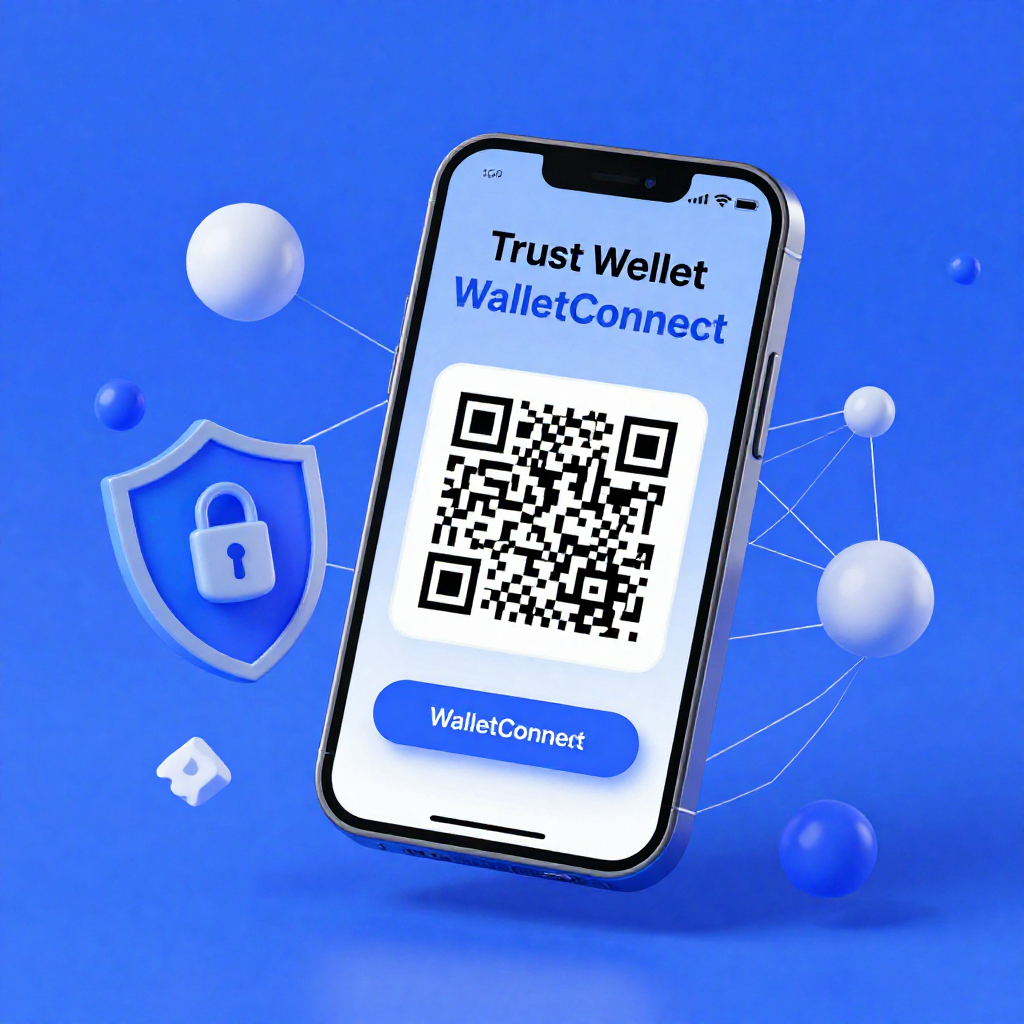
Trust Wallet connects to DApps using WalletConnect or a built-in DApp browser.
Trust Wallet enables blockchain interaction. WalletConnect creates encrypted sessions. DApps request wallet authorization for transactions, swaps, and NFT actions.
Connecting Trust Wallet means linking your wallet to a DApp or crypto service. The wallet signs transactions via smart contracts without exposing your private key.
You need an active wallet, a backed-up seed phrase, and secure internet access.
Trust Wallet requires setup and authentication before external connections.
Preparation ensures secure session approval.
You connect Trust Wallet using WalletConnect by scanning a QR code or opening a deep link. This creates an encrypted bridge between your wallet and the DApp.
Example:
WalletConnect uses end-to-end encryption and keeps private keys local.
Trust Wallet connects directly through its integrated DApp browser. The browser executes smart contracts inside the wallet environment.
This method simplifies mobile DeFi interaction.
Trust Wallet connects to exchanges using WalletConnect or wallet addresses.
Centralized exchanges rely on deposits, not direct wallet sessions.
Incorrect network selection leads to irreversible asset loss.
You connect Trust Wallet to desktop DApps using WalletConnect or browser extension bridges. Desktop sites generate QR codes for mobile approval.
Trust Wallet secures connections using private key isolation and encryption. Security depends on user verification and session management.
Fact: Trust Wallet does not store user data on centralized servers.
Trust Wallet fails due to network mismatch, outdated app version, or session errors.
Most failures involve expired WalletConnect sessions.
Most issues result from expired sessions or unsupported DApps
WalletConnect provides cross-device flexibility; DApp browser provides faster in-app access.
| Feature | WalletConnect | DApp Browser |
| Device support | Mobile + Desktop | Mobile only |
| Connection method | QR code / deep link | Direct in-app |
| Speed | Moderate | Fast |
| Security layer | Encrypted session | Local interaction |
Both methods rely on private key signing and smart contract execution.
Trust Wallet supports Ethereum, BNB Smart Chain, Polygon, and more.
Each network defines fees, speed, and smart contract compatibility.
| Network | Token Standard | Common Use Case |
| Ethereum | ERC-20 | DeFi, NFTs |
| BNB Smart Chain | BEP-20 | Low-fee trading |
| Polygon | ERC-20 | Scalable DApps |
Each network defines transaction fees, speed, and contract compatibility.
Trust Wallet shares public wallet addresses and signed transaction approvals. It never exposes private keys or seed phrases.
Trust Wallet enables transaction approval and smart contract execution. Every blockchain interaction requires manual confirmation.
Every action requires manual confirmation inside the wallet interface.