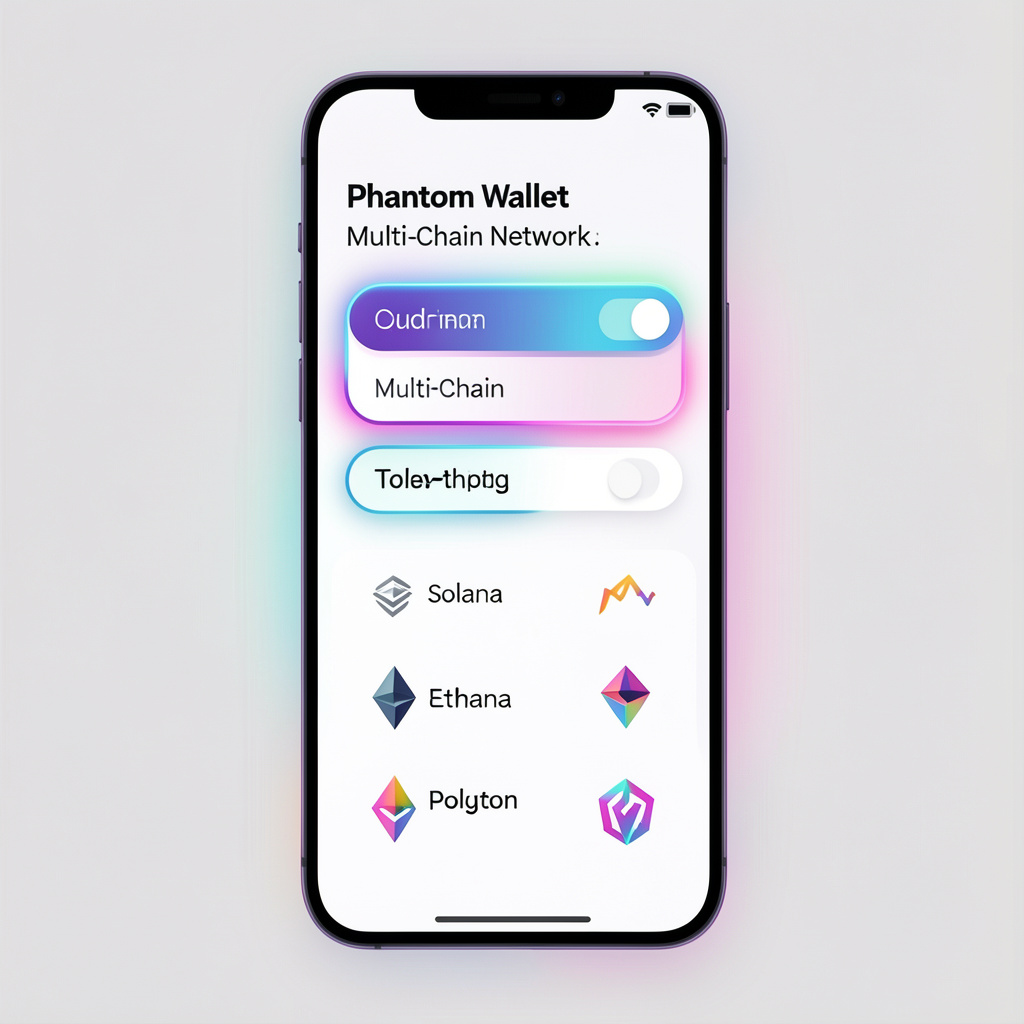
You add a network in Phantom Wallet by opening Settings → Manage Networks → Toggle network on. Phantom activates Ethereum or Polygon instantly without RPC input.
Phantom Wallet eliminates manual RPC setup
Toggle action initiates blockchain connection
Wallet system loads network configuration
Phantom Wallet supports multi-chain interaction through built-in network toggles. The wallet removes manual configuration steps.
Next, you see what “adding a network” technically means.
What Does Adding a Network in Phantom Wallet Mean?
Adding a network means enabling blockchain interaction inside the wallet interface.
Phantom uses one seed phrase to derive multiple chain-specific addresses.
Example:
Seed phrase derives Solana address
Seed phrase derives EVM address
Next, you see supported networks and their roles.
Which Networks Does Phantom Wallet Support?
Phantom supports Solana, Ethereum, and Polygon because they represent high-usage ecosystems.
Network Purpose Mapping
Network
Role
TPS (Approx.)
Avg Fee
Solana
High-speed L1
2,000–4,000
<$0.01
Ethereum
Smart contract L1
~15
$1–$50+
Polygon
Scaling L2
7,000+
<$0.01
Solana optimizes throughput
Ethereum executes complex smart contracts
Polygon scales Ethereum transactions
Phantom Wallet integrates EVM and non-EVM chains
Next, you locate configuration controls.
Where Is the Manage Networks Option in Phantom Wallet?
You manage networks inside the settings control layer of the wallet UI.
UI Hierarchy
Wallet Dashboard displays assets
Settings Menu controls preferences
Manage Networks lists blockchain toggles
Path:
User opens Phantom Wallet
User clicks Settings icon
User selects Manage Networks
Settings controls wallet configuration
Manage Networks lists blockchains
Toggle switch changes network state
Next, you perform the activation process.
How Do You Enable a Network Step by Step?
You enable Ethereum or Polygon by switching the network toggle to “on”.
Steps
Open Phantom Wallet
Click Settings
Select Manage Networks
Toggle Ethereum or Polygon
Toggle switch to “enabled”
System Response
Toggle action activates network
Wallet connects to RPC endpoint
Interface updates balances
UI refreshes balances
Latency: Typically <2 seconds depending on network.
Next, you examine RPC limitations.
Does Phantom Wallet Allow Custom RPC Networks?
Phantom Wallet restricts custom RPC input.
Phantom uses predefined RPC endpoints
System blocks manual RPC entry
Default RPC ensures security
Comparison:
Wallet
Custom RPC Support
Phantom
Limited
MetaMask
Full
RPC node relays blockchain data
Phantom controls endpoint selection
Phantom RPC Model
Feature
Phantom Wallet
Custom RPC
Restricted
Default RPC
Enabled
Endpoint control
Internal
Phantom selects trusted RPC providers
Default RPC reduces misconfiguration risk
Example:
Wallet calls eth_getBalance
RPC node returns ETH balance
Next, you learn how addresses differ.
Do Wallet Addresses Change Across Networks?
Yes. Each network uses a different address format.
Solana uses base58 format
Ethereum uses hex (0x) format
Polygon shares Ethereum format
Address Formats
Network
Encoding
Prefix
Length
Solana
Base58
None
32–44
Ethereum
Hex
0x
42
Polygon
Hex
0x
42
Examples:
Solana → 7f4d3…AB92
Ethereum → 0xA1B2…C3D4
Private key derives multiple addresses
Network type defines format
Next, you see how keys work.
How Does Phantom Wallet Use Private Keys Across Chains?
Phantom uses one seed phrase for all networks.
Seed phrase generates private key
Private key derives addresses
Wallet signs transactions
Example:
Ethereum uses BIP-44 path m/44’/60’/0’/0
Solana uses m/44’/501’/0’/0
Critical fact:
Loss of seed phrase removes access to all assets across all chains.
Next, you diagnose missing networks.
Why Does a Network Not Appear or Fail to Activate?
A network fails due to configuration, version, or connectivity constraints.
Root Causes
Toggle state disabled
Wallet version outdated
RPC endpoint fails
Feature rollout restricted
Resolution Flow
Update wallet version
Restart wallet session
Re-enable network
Check internet connection
System update restores compatibility
Next, you see what changes after activation.
What Changes Immediately After Enabling a Network?
Enabling a network updates wallet state, UI, and blockchain connectivity.
Immediate Effects
Wallet loads token balances
Gas fee module activates
dApp browser supports network
NFT indexer fetches assets
Behavioral Changes
User switches networks dynamically
Transactions execute per chain
Smart contracts become accessible
Example:
Ethereum enabled → Uniswap access
Polygon enabled → low-fee swaps
Next, you explore edge-case issues.
What Problems Can Occur After Adding a Network?
Common issues include missing balances or wrong network selection.
User selects wrong network → assets appear missing
Token contract not added → balance hidden
RPC delay slows updates
Fix methods:
Switch network
Refresh wallet
Reconnect dApp
What Is the Core Benefit of Multi-Chain in Phantom Wallet?
Multi-chain support allows single-wallet asset management across ecosystems.
Phantom unifies Solana and EVM chains
User avoids multiple wallets
Interface centralizes asset control
Data point: Multi-chain wallets reduce wallet switching friction by over 60% in user flow studies (Web3 UX research, 2024).
Adding networks in Phantom Wallet allows users to manage multi-chain assets from a single interface. By enabling Solana, Ethereum, and Polygon, users can interact with different blockchain ecosystems without creating separate wallets.
Understanding how networks, addresses, and private keys work together ensures safe and efficient cross-chain usage.